

Spyware Protection 2010 is one possible rogue program that you may acquire by visiting malicious web sites. Other courses where you can be infected with this malware is through executable files that you may download from file-sharing networks. On some instances, Spyware Protection 2010 virus can be downloaded with full consent when it has convinced computer users that it was a valid security program.
When loaded on to the computer, this bogus software constantly promote itself as an antivirus tool by flashing fake alert messages telling users that security threats are present on the system. It will offer a help to remove these threats in the condition that a registered version must be purchased first. You should not bite this trap because in the end, you will be submitting your credit card account to cyber criminals. You will end up losing hundreds of dollars. The process also makes you a victim of identity theft.
With presence of Spyware Protection 2010 on the computer, one may experience irregularities and slow down on system performance. This is due to the operation being carried by rogue program in the background that remains unknown to computer users. Spyware Protection 2010 will connect to a remote host and download additional potentially unwanted program. Aside from that, any installed antivirus software will be disabled by the malware to prevent detection of itself. Thus, removal of Spyware Protection 2010 is so slim.
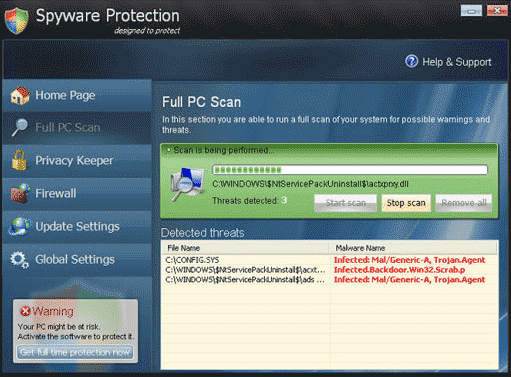
In order to effectively remove the malware, you need a powerful anti-malware tool. This program together with complete guide can be found on the removal section on this page.
Procedures to Remove Spyware Protection 2010
Download FREE Removal Tool
Removal steps on this page will help you get rid of the threat effectively using tools and virus scanners. Please make sure that you will carry out the guide in exact order.
Procedure 1: Activate Spyware Protection 2010 and run virus scan
For users with technical skills in dealing with computer problems, executing this manual removal is enough to stop the malware. However, we highly recommend running anti-malware scan to remove other hidden files. For users who are not tech-savvy, you must skip this step. Start on Procedure 2 and proceed onwards. Automatic removal takes longer to accomplish but is less difficult to execute.
1. Please use the serial code below to activate Spyware Protection 2010.
Once the rogue program has activated, you will regain access to Internet and needed tools like task manager and registry editor. Keep in mind that entering this code will not remove the malware. This step will just reverse all changes the rogue software has made to the computer.
Serial Code: SL55J-T54YHJ61-YHG88
2. Next, we will try to remove Spyware Protection 2010 by running a virus scan under Safe Mode with Networking. To perform this task, please complete these procedures.
Start Windows 8 / Windows 10 in Safe Mode with Networking
- Close all running programs on your computer because we will need to restart Windows on this procedure.
- Press and Hold Shift key on your keyboard while clicking on Restart.
- You will then be presented with Troubleshooting Options.
- Click on Troubleshoot icon.
- Then, Click on Advanced Options icon.
- Select Startup Settings icon and then, Click on Restart button.
- When Windows restarts, it will prompt to choose number from the list of options. Press the number on your keyboard that corresponds to Safe Mode with Networking, commonly number 5.
- Once in Safe Mode, please proceed to the next step which is running a virus scan on the computer.
Start in Safe Mode with Networking (Windows XP / Vista / 7 Instruction)
- Please restart the computer and just before Windows start, press F8 on your keyboard repeatedly. You will be presented with Advanced Options Menu.
- From the selections, choose Safe Mode with Networking. Please use keyboard's arrow up/down to navigate between selections and press Enter to proceed.

3. Open your installed anti-virus programs and update it to the most recent version by automatically downloading necessary updates.
4. Thoroughly scan the computer and remove all identified threats. Do not restart or turn off the computer after the scan process. You still need to run another scan. Please follow the next procedure.
Procedure 2: Scan and remove Spyware Protection 2010 files with MalwareBytes Anti-Malware
To remove Spyware Protection 2010, download Malwarebytes Anti-Malware. This tool is effective in getting rid of Trojans, viruses and malware.

1. After downloading, please install the program using the default settings.
2. At the end of the installation, please make sure that it will download necessary updates.
3. Once update has completed, MBAM will launch.

4. Select SCAN from the top menu. Then, click on Threat Scan (Recommended) section.
5. Click on Start Scan to thoroughly scan the computer. Remove all threats detected by this anti-malware program after the process.
Procedure 3: Run TrendMicro's Fake Antivirus Remover (ATTK) to check and delete any remnants of Spyware Protection 2010.
As an added help to remove Spyware Protection 2010, you can scan the computer with Fake Antivirus Removal Tool. This software is provided and distributed by TrendMicro. Follow this procedure to run a scan with this tool.
1. Download the package by clicking on the button below. This will launch a new browser window that contains further details about the tool.

2. Save the file to a location on your hard drive.
3. Browse for the location of the file and double-click to run. If you are using Windows Vista or Windows 7, right-click on extracted file supportcustomizedpackage and click on Run as Administrator.

4. When program launch, it will run a command prompt to initialize, prepare components, and update the program.
5. Next it will open the graphical user interface (GUI) of Anti-Threat Toolkit.

6. Click on Scan Now. This operation will scan all Spyware Protection 2010 files and processes in your computer and display a list of result for possible Fake Antivirus program and malware that needs to be removed.
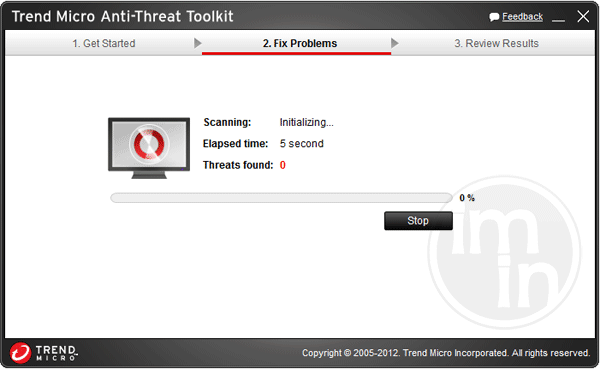
7. Tick all items that are detected by the program, and then click Clean. The tool will start removing Spyware Protection 2010 components from the computer.
8. If it asked you to restart Windows, please do so.
Procedure 4: Remove Rootkit Trojan with Avast aswMBR
A Trojan often drops malware using an advance technology known as rootkit. It hides the installation of Spyware Protection 2010 from your anti-virus program and injects malicious code to running Windows processes. To complete the clean-up process, you also need to scan and remove rootkit Trojan.
1. Download aswMBR from Avast server. Save it to your computer.

2. Double-click on the file aswMBR.exe to run the program.
3. If it prompts you to download the latest Avast! virus definition, please click Yes. This is necessary to identify most recent version of the Trojan as well as hidden files of Spyware Protection 2010.

4. Click on Scan button to start checking your computer for presence of rootkit Trojan and other viruses. It will display a message "Scan finished successfully" when done.

5. Click Fix or FixMBR to start removing infection. If aswMBR contains the latest Avast! virus definition file, it will automatically clean infected files on your PC.
Protect your PC from Spyware Protection 2010 or Similar Attack
Turn On Safe Browsing Features
Google Chrome's Protection from Dangerous Sites
With Google Chrome's Dangerous Site Protection feature, you will have lesser risks browsing the web. It will display a warning when the site you are trying to visit is suspicious, thus, you can prevent Spyware Protection 2010 infection. To enable protection from dangerous sites, please do these steps:
1. Open Google Chrome.
2. In the address bar, type this: chrome://settings/ and then, Press Enter.
3. Once on the settings page, click on Show advanced settings... at the bottom of the page to see the rest of the Chrome setup.
4. Locate Privacy section and mark 'Protect you and your device from dangerous sites'.

5. Please restart Google Chrome. New settings keep your browser safe while surfing the web.
Internet Explorer - Activate SmartScreen Filter
Internet Explorer versions 8 and 9 has this feature called SmartScreen Filter. It helps detect phishing web sites and protect you from downloading malicious programs including Spyware Protection 2010. To turn on SmartScreen Filter, follow these steps:
1. Please open Internet Explorer.
2. On top menu, select Tools (IE 9). For IE 8, please look for Safety menu.
3. Select SmartScreen Filter from the drop-down list and click on Turn on SmartScreen Filter.
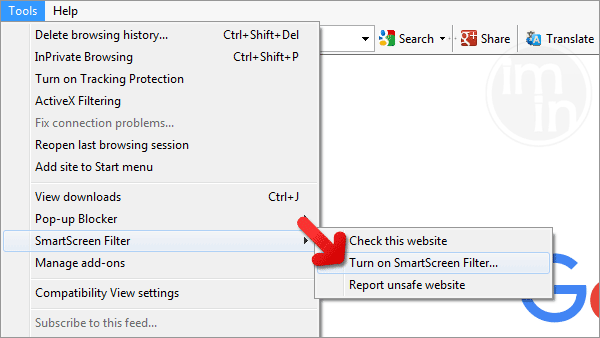
4. Please restart Internet Explorer.
Mozilla Firefox - Block Attack Sites and Web Forgeries
Phishing and Malware Protection is a built-in feature on Firefox version 3 or later. It warns you when a page you are trying to visit contains phishing content or an attack site designed to drop threats such as Spyware Protection 2010. To help you keep safe while browsing the Internet using Firefox, please follow this guide:
1. Open Mozilla Firefox browser.
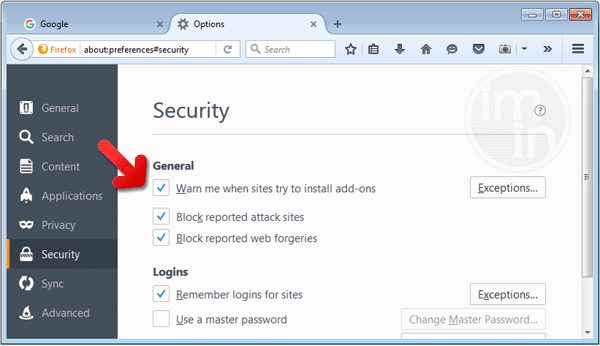
2. On top menu, click on Open Menu. Then select Options from the list.
3. Select Security and put a check mark on the following items:
- Warn me when sites try to install add-ons
- Block reported attack sites
- Block reported web forgeries
Edge Browser - SmartScreen Filter
SmartScreen filter is a built-in feature in Microsoft Edge browser that can help you deter malicious programs such as Spyware Protection 2010. It can block malicious web sites and downloads.
1. Open Microsoft Edge browser.
2. Click on More Actions button located at top right corner of the screen.
3. Select Settings from the drop-down list.
4. Under Settings menu, go to Advanced Settings section and click on View Advanced Settings.
5. Scroll down to "help protect my PC from malicious sites and downloads with SmartScreen Filter". Turn it to ON.
6.You may now restart Microsoft Edge browser.

