

XP Internet Security, sometimes called as XP Internet Security 2011 will spread violently on computers by means of a Trojan. As of this writing, most of the installed anti-virus program will not see it coming. XP Internet Security is still undetectable because it uses a rootkit technology where it can conceal itself from legitimate system files, making it hidden to most antivirus products. It does not require any approval from computer owner to get itself installed. As soon as it has completed loading on the system, users may immediately notice that the program is taking over the PC. Some programs are blocked, Internet browser is redirected to unknown web sites and anti-virus programs will stop working. Aside from that, XP Internet Security reiterates that viruses were found on the computer and warning messages are displayed like the following:
“Privacy threat!
Spyware intrusion detected. Your system is infected. System integrity is at risk. Private data can be stolen by third parties, including credit card details and passwords. Click here to perform a security repair.”
“System danger!
Your system security is in danger. Privacy threats detected. Spyware, keyloggers or Trojans may be working the background right now. Perform an in-depth scan and removal now, click here.”
Keep in mind that XP Internet Security was developed for malicious purposes – to infect as many computers as it can and earn a profit from this fraudulent behavior. It is strongly advise to remove XP Internet Security once any of the above mentioned symptoms is detected. Use only an efficient and trusted security products and never obtain a paid version of XP Internet Security 2011.
What are the Symptoms of XP Internet Security Infection?
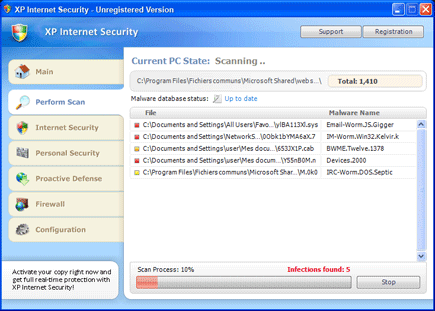
It will modify Windows Registry and add the following entries:
HKEY_CURRENT_USER\Software\Classes\pezfile
HKEY_CURRENT_USER\Software\Classes\.exe\shell\open\command “(Default)” = “%UserProfile%\Local Settings\Application Data\pw.exe” /START “%1” %*
HKEY_CURRENT_USER\Software\Classes\pezfile\shell\open\command “(Default)” = “%UserProfile%\Local Settings\Application Data\pw.exe” /START “%1” %*
HKEY_CLASSES_ROOT\.exe\shell\open\command “(Default)” = “%UserProfile%\Local Settings\Application Data\pw.exe” /START “%1” %*
HKEY_CLASSES_ROOT\pezfile\shell\open\command “(Default)” = “%UserProfile%\Local Settings\Application Data\pw.exe” /START “%1” %*
HKEY_LOCAL_MACHINE\SOFTWARE\Clients\StartMenuInternet\FIREFOX.EXE\shell\open\command “(Default)” = “%UserProfile%\Local Settings\Application Data\pw.exe” /START “C:\Program Files\Mozilla Firefox\firefox.exe”
HKEY_LOCAL_MACHINE\SOFTWARE\Clients\StartMenuInternet\FIREFOX.EXE\shell\safemode\command “(Default)” = “%UserProfile%\Local Settings\Application Data\pw.exe” /START “C:\Program Files\Mozilla Firefox\firefox.exe” -safe-mode
HKEY_LOCAL_MACHINE\SOFTWARE\Clients\StartMenuInternet\IEXPLORE.EXE\shell\open\command “(Default)” = “%UserProfile%\Local Settings\Application Data\pw.exe” /START “C:\Program Files\Internet Explorer\iexplore.exe”
The threat will drop the following malicious files:
%UserProfile%\AppData\Local\[random]
%UserProfile%\AppData\Local\pw.exe
%UserProfile%\AppData\Local\MSASCui.exe
%UserProfile%\Local Settings\Application Data\[random]
%UserProfile%\Local Settings\Application Data\pw.exe
%UserProfile%\Local Settings\Application Data\MSASCui.exe
How to Remove XP Internet Security Manually
1. Restart your computer in SafeMode
– Press F8 on keyboard as soon as you turn on the computer
– Select SafeMode to start the computer loading only minimal resources
2. Delete Windows registry entries the malware created. It is important to BACKUP YOUR REGISTRY FIRST.
– On Windows Start Menu, Click Start > Run
– Type in the field, regedit
– Find registry entries mentioned above and delete if necessary
3. Files related to XP Internet Security must be deleted:
– Browse and delete malicious files detected above.
– Some files cannot be deleted instantly. Press Ctrl+Alt+Del to open Windows Task Manager, look for any virus-related files mentioned on this page and highlight it, click End Process. Try to delete the file once more.
4. Run Antivirus Program
– You must be connected to Internet to be able to update your anti-virus program. This is needed to have the latest database available and detect newer threats.
– Thoroughly scan the computer and clean or delete all detected threats.
How to Easily Remove XP Internet Security
1. Print this procedure as we need to close all running programs later.
2. Download AntiMalware Application here and save it to your Desktop.
3. Close all open applications.
4. Double-Click on the downloaded mbam-setup.exe to start the installation. If unable to execute, infections on computer is preventing it from running, rename the file mbam-setup.exe to anything (like myfile.exe)
5. Run the installation on the default settings. No changes are necessary.
6. Just before completing the installation, make sure that the following are marked check.
– Update the program
– Launch the program
7. The tool will run and update itself after installation. Close it after the update.
8. Restart your computer in SafeMode
– After Power-On the computer, just before Windows start, press F8
– From the selections, Select SafeMode
9. Click on the icon and start to Perform Full Scan to begin scanning your computer for XP Internet Security related files.
10. After scanning, a message will appear stating that the scan is completed successfully. Click OK.
11. Click Show Results and detected threats will be displayed.
12. Make sure that all threats are marked check, then click Remove Selected to begin removal of the malicious files.
13. Exit AntiMalware Apps and restart your computer.
14. XP Internet Security and all its files are now removed from your computer. To guard your computer from this threat and avoid future infections, you may want real-time protection from AntiMalware Apps.

We just caught a version that uses “vz.exe” instead of the “pw.exe”
I got this virus earlier today and it hit my computer with a vengeance. It kept popping up the stupid fake “scanning” thing, and it would not let me open pretty much anything.
First I restarted in safe mode (with and without networking) a few times and the program STILL was able to run and block me from running things.
Here’s what worked for me:
1. Restarted in safe mode with no command prompt
2. Chose my personal login name (not administrator — not saying that administrator wouldn’t have worked though… I simply don’t know)
3. When Windows first started loading I got a pop up message from Windows talking about Safe Mode which basically said something like (paraphrasing): “Press YES to continue in Safe Mode, Press NO to use the system restore to restore your computer to a previous period”. I chose NO.
4. The System Restore thing DID load at that point, even though the stupid virus was loaded too and running a fake scan as usual.
5. I chose to restore the system to 2 days ago, before I got the virus.
6. When it was done I let it restart in normal mode (not safe mode) and to my surprise the virus appeared to be gone.
7. I ran a Quick Scan with Malwarebytes Anti-Malware. It detected 3 malicious things, a Trojan, a data stealing thing, and something else, I forgot. I removed them all. Not sure if they were related to that virus or if they were on there previously (I hadn’t run a scan in like a week)
8. I rebooted as per Malwarebytes’ instructions.
9. I ran Malwarebytes Anti-Malware again. First I updated my database, which was outdated. Then I ran another scan and it found nothing. Problem seems to be solved, thank god.
Good luck people.
I’m not a computer guy at all, but my wife’s computer got this on there and I was wondering any truth to what it says on the pop-up that my passwords and any bank or credit card info that I have accessed in the past be stolen? Or are they just trying to get paid for a bad piece of software?