

Windows Profile System was identified as rogue security application that will disguise as legal virus and malware remover. But in real world of computer security, Windows Profile System was developed without a capacity to remove threats neither protect computer from security attacks. This fake AV program was originated from a family of rogue where Windows Supervision Center and Windows Attention Utility also belongs. During Windows start-up, it will imitate legitimate anti-virus and do a full scan of the system. A number of threats is detected and prompt users to remove it by acquiring the licensed version of Windows Profile System.
Commonly obtained from malicious web sites, this potentially unwanted application will be dropped on victims computer via drive-by-download method. Taking advantages of computer’s security weakness will allow Windows Profile System to be installed without users full knowledge. Once it penetrates a computer, a bunch of fake warnings and alerts is issued stating that computer is under attack. Aside from this, the rogue program will perform numerous annoyances just to irritate user and push them to pay for the registered version of the program.
What are the Symptoms of Windows Profile System Infection?
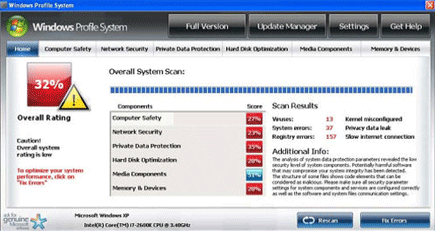
It will modify Windows Registry and add the following entries:
HKEY_LOCAL_MACHINE\SOFTWARE\Microsoft\Windows NT\CurrentVersion\Image File Execution Options\afwserv.exe “Debugger” = ‘svchost.exe’
HKEY_LOCAL_MACHINE\SOFTWARE\Microsoft\Windows NT\CurrentVersion\Image File Execution Options\avastsvc.exe “Debugger” = ‘svchost.exe’
HKEY_LOCAL_MACHINE\SOFTWARE\Microsoft\Windows NT\CurrentVersion\Image File Execution Options\avastui.exe “Debugger” = ‘svchost.exe’
HKEY_LOCAL_MACHINE\SOFTWARE\Microsoft\Windows NT\CurrentVersion\Image File Execution Options\egui.exe “Debugger” = ‘svchost.exe’
HKEY_LOCAL_MACHINE\SOFTWARE\Microsoft\Windows NT\CurrentVersion\Image File Execution Options\ekrn.exe “Debugger” = ‘svchost.exe’
HKEY_LOCAL_MACHINE\SOFTWARE\Microsoft\Windows NT\CurrentVersion\Image File Execution Options\msascui.exe “Debugger” = ‘svchost.exe’
HKEY_LOCAL_MACHINE\SOFTWARE\Microsoft\Windows NT\CurrentVersion\Image File Execution Options\msmpeng.exe “Debugger” = ‘svchost.exe’
HKEY_LOCAL_MACHINE\SOFTWARE\Microsoft\Windows NT\CurrentVersion\Image File Execution Options\msseces.exe “Debugger” = ‘svchost.exe’
HKEY_CURRENT_USER\Software\Microsoft\Windows\CurrentVersion\Internet Settings “WarnOnHTTPSToHTTPRedirect” = ’0?
HKEY_LOCAL_MACHINE\SOFTWARE\Microsoft\Windows\CurrentVersion\Internet Settings “WarnOnHTTPSToHTTPRedirect” = ’0?
HKEY_LOCAL_MACHINE\SOFTWARE\Microsoft\Windows NT\CurrentVersion\SystemRestore “DisableSR ” = ’1?
The threat will drop the following malicious file:
%UserProfile%\Application Data\Microsoft\[random characters].exe
How to Remove Windows Profile System Manually
1. Restart your computer in SafeMode
– After Power-On the computer, just before Windows start, press F8
– From the selections, Select SafeMode
2. Remove Registry entries that the threat added. You MUST BACKUP YOUR REGISTRY FIRST.
– Click Start > Run
– Type in the field, regedit
– Navigate and look for the registry entries mentioned above and delete if necessary
3. Delete malicious files that the threat added:
– Base on the given location above, browse and delete the file
– If no location is given, click Start>Search> and search for the files.
– If cannot be deleted, press Ctrl+Alt+Del to access Task Manager, see if the file is running in the process. If it is, select the file and click End Process. Perform file delete again.
4. Scan computer with Antivirus Program
– Update antivirus program
– Scan computer and delete all detected threats.
How to Easily Remove Windows Profile System
1. Download and run Removal Tool to remove this computer threat.
