

USAntiSpy is a rogue anti-spyware application that issues false scan results on victims computer to make them believe that it is infected with viruses. This method can easily deceived computer users and will be compelled to purchase and pay for the full version of USAntiSpy. The truth is, USAntispy was never a security application. It is a made-to-spread scam application that uses the slogan “Your System Protection” in order to mislead its victims. The program was categorized as rogue security software containing no database and components necessary for anti-virus functionalities.
USAntispy may be easily installed on computers with just a click of a link or execution of attached file on spam email messages. Once installed, this useless program will allow to run itself on every boot of Windows by inserting an entry on Windows registry. It will not present any strings on the Add/Remove program of Windows to avoid its automatic removal. The only way to remove USAntispy virus is through the use of legitimate anti-malware application as shown below.
What USAntiSpy Does?
A USAntispy scanner will run on its own and display false detected threats
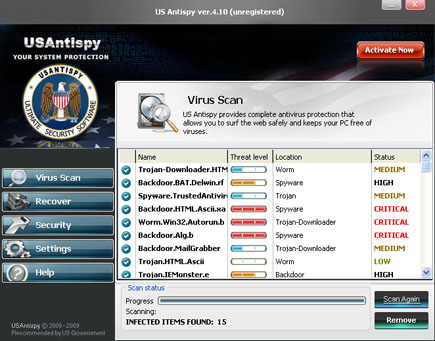
It will modify Windows Registry and add the following entries:
- HKEY_CLASSES_ROOT\CLSID\{0B014B81-4E12-46F9-806F-55867AF8FD3C}
- HKEY_LOCAL_MACHINE\SOFTWARE\A6EE1950FD52D0A942D887EEEE3EE4B5
- HKEY_LOCAL_MACHINE\SOFTWARE\Microsoft\Windows\CurrentVersion\Explorer\Browser Helper Objects\{0B014B81-4E12-46F9-806F-55867AF8FD3C}
- HKEY_LOCAL_MACHINE\SYSTEM\ControlSet002\Control\Class\{4D36E96E-E325-11CE-BFC1-08002BE10318}\S
- HKEY_LOCAL_MACHINE\SOFTWARE\Microsoft\Windows\CurrentVersion\Run “USA”
- 0B014B81-4E12-46F9-806F-55867AF8FD3C} – C:\WINDOWS\system32\ddrawx.dll
- HKLM\..\Run: [USA] C:\Program Files\USA\usa.exe
The threat will drop the following malicious files:
- C:\Windows\dBeL3EEgfP.dll
- C:\Program Files\USA
- C:\Program Files\USA\dm0_rte.xmz
- C:\Program Files\USA\usa.exe
- C:\WINDOWS\system32\ddrawx.dll
- C:\%UserProfile%\Desktop\USAntispy.lnk
- C:\Documents and Settings\All Users\Start Menu\USA
- C:\Documents and Settings\All Users\Start Menu\USA\Uninstall.lnk
- C:\Documents and Settings\All Users\Start Menu\USA\USAntispy.lnk
- C:\Program Files\Common Files\Security
- C:\Program Files\Common Files\Security\Uninstall USAntispy.lnk
How to Remove USAntiSpy Manually
1. Restart your computer in SafeMode
– After Power-On the computer, just before Windows start, press F8
– From the selections, Select SafeMode
2. Remove Registry entries that the threat added. You MUST BACKUP YOUR REGISTRY FIRST.
– Click Start > Run
– Type in the field, regedit
– Navigate and look for the registry entries mentioned above and delete if necessary
3. Delete malicious files that the threat added:
– Base on the given location above, browse and delete the files
– If no location is given, click Start>Search> and search for the files.
– If cannot be deleted, press Ctrl+Alt+Del to access Task Manager, see if the file is running in the process. If it is, select the file and click End Process. Perform file delete again.
How to Easily Remove USAntiSpy
1. Print this procedure as we need to close all programs running later.
2. Download AntiMalware Application here and save it to your Desktop.
3. Close all open applications.
4. Double-Click on the downloaded mbam-setup.exe to start the installation. If unable to execute, infections on computer is preventing it from running, rename the file mbam-setup.exe to anything (like myfile.exe)
5. Run the installation on the default settings. No changes are necessary.
6. Just before completing the installation, make sure that the following are marked check.
– Update the program
– Launch the program
7. The tool will run and update itself after installation. Close it after the update.
8. Restart your computer in SafeMode
– After Power-On the computer, just before Windows start, press F8
– From the selections, Select SafeMode
9. Click on the icon and start to Perform Full Scan to begin scanning your computer for USAntiSpy related files.
10. After scanning, a message will appear stating that the scan is completed successfully. Click OK.
11. Click Show Results and detected threats will be displayed.
12. Make sure that all threats are marked check, then click Remove Selected to begin removal of the malicious files.
13. Exit MBAM and restart your computer.
14. USAntiSpy and all its files are now removed from your computer. To guard your computer from this threat and avoid future infections, you may want real-time protection from a full version of anti-malware program..
