

Having system errors and hard disk report from ‘System Defragmenter’ is one that must be totally ignored. System Defragmenter malware will attempt to lure computer users to purchase the license version by means of deceptive methods including fake analysis. This rogue program can invade the computer when you visit web sites that were contracted with a virus or Trojan. A script to download and install System Defragmenter on to visitor’s computer can be carried out completely without being detected by your antivirus program. This malware was designed to conceal its presence on the infected computer.
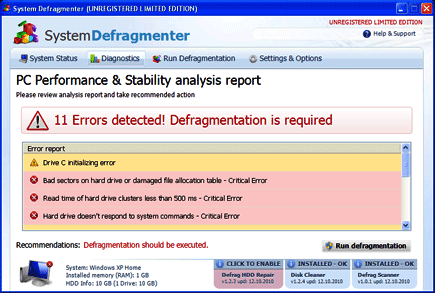
Computer users will be surprised to see a running program of System Defragmenter showing “PC Performance & Stability Analysis Report” after starting Windows operating system. The warning states that a number of errors were detected and disk defragmentation is required. It presents this program as the sole solution. However, it won’t start working until you are convinced to get the registered version. As you can see, System Defragmenter virus aims to steal money from you through this deceptive method. Thus, buying this fake program should never be your option.
Remove System Defragmenter immediately by scanning the computer with your anti-virus program. Be sure to have the latest database and signature files in order to detect even those threats that were hiding on the system folders. Additionally, a separate scan with anti-malware program can help remove System Defragmenter instantly. Carry out the full procedure as stated on this page.
What are the Symptoms of System Defragmenter Infection?
It will modify Windows Registry and add the following entries:
HKEY_CURRENT_USER\Software\Microsoft\Windows\CurrentVersion\Run = [random].exe
HKEY_CURRENT_USER\Software\Microsoft\Windows\CurrentVersion\Run = System Defragmenter.exe
The threat will drop the following malicious files:
%Temp%\
%Temp%\[random].exe
%Temp%\[random].log
%Temp%\maindll.dll
%Documents and Settings%\[UserName]\Desktop\System Defragmenter.lnk
%Documents and Settings%\[UserName]\Local Settings\Start Menu\Programs\System Defragmenter.exe
%Documents and Settings%\[UserName]\Local Settings\Start Menu\Programs\System Defragmenter\System Defragmenter.lnk
How to Remove System Defragmenter Manually
1. Restart your computer in SafeMode
– After Power-On the computer, just before Windows start, press F8
– From the selections, Select SafeMode
2. Remove Registry entries that the threat added. You MUST BACKUP YOUR REGISTRY FIRST.
– Click Start > Run
– Type in the field, regedit
– Navigate and look for the registry entries mentioned above and delete if necessary
3. Delete malicious files that the threat added:
– Base on the given location above, browse and delete the file
– If no location is given, click Start>Search> and search for the files.
– If cannot be deleted, press Ctrl+Alt+Del to access Task Manager, see if the file is running in the process. If it is, select the file and click End Process. Perform file delete again.
4. Scan computer with Antivirus Program
– Update antivirus program
– Scan computer and delete all detected threats.
How to Easily Remove System Defragmenter
1. Download and run the removal tool from this link to delete this computer threat right away.

NORTON 360 WILL REMOVE THIS VIRUS! I found myself overwhelmed with the manual removal instructions so I went to the Norton website and downloaded Norton 360 which is free for 90 days. I was pretty pessimistic about the outcome, I had run Avast and Malwarebytes with no luck. To my surprise after I scanned my computer and rebooted this ugly beast was gone!
There’s a newer version of the same program that runs a fake AV called “Easy Scan” though it looks exactly the same. You may want to add “Easy Scan” to your search terms to help people out, because I removed it the same was as above after a lot of searching and with little info.