

Security Antivirus is a new variant of counterfeit security program providing the same annoyances as Windows System Suite. Typically, Security Antivirus will penetrate a computer unknown to users by exploiting system vulnerabilities. It will redirect Internet browser to a fake online virus scanner that will instantly perform virus scan on visitors computer. This website will produce falsified information and alert its visitors of current infection on computer. An advise to download and install Security Antivirus will be followed. Once inside the computer, Security Antivirus still carry the same task – to convince users that computer is severely infected and a solution must be obtained. A prompt to buy the Security Antivirus activation key or serial number will be displayed each time a “Remove” button was clicked. You should know that having the licensed version of rogue programs such as Security Antivirus is not the solution, this rogue program must be removed manually or automatically using only legit security programs.
What are the Symptoms of Security Antivirus Infection?
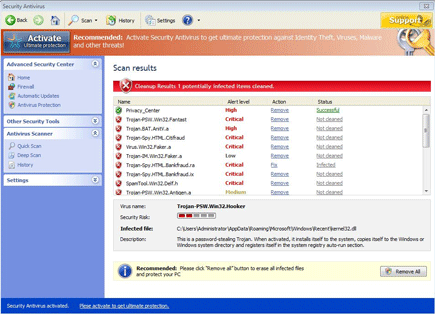
Rogue program will scan computer and display fake results that will lead into purchasing of Security Antivirus activation key and serial number.
Security Antivirus will modify Windows Registry and add the following entries:
- HKEY_CLASSES_ROOT\ReleaseXP.DocHostUIHandler
- HKEY_CURRENT_USER\Software\Microsoft\Windows\Current Version\Internet Settings\5.0\User Agent\Post Platform “986707143803”
- HKEY_CURRENT_USER\Software\Microsoft\Windows\Current Version\Run “Security Antivirus”
The threat will drop the following malicious files:
- c:\Documents and Settings\All Users\Application Data\61a60\SA83b.exe
- c:\Documents and Settings\All Users\Application Data\SAYSSSys\sayss.cfg
- %UserProfile%\Application Data\Microsoft\Internet Explorer\Quick Launch\Security Antivirus.lnk
- %UserProfile%\Application Data\Security Antivirus\cookies.sqlite
- %UserProfile%\Desktop\436.mof
- %UserProfile%\Desktop\mozcrt19.dll
- %UserProfile%\Desktop\sqlite3.dll
- %UserProfile%\Desktop\Security Antivirus.lnk
- %UserProfile%\Desktop\SAYSS.ico
- %UserProfile%\Desktop\SAYSSSys\vd952342.bd
- %UserProfile%\Recent\ANTIGEN.tmp
- %UserProfile%\Recent\cb.exe
- %UserProfile%\Recent\cid.dll
- %UserProfile%\Recent\CLSV.tmp
- %UserProfile%\Recent\DBOLE.sys
- %UserProfile%\Recent\ddv.dll
- %UserProfile%\Recent\eb.drv
- %UserProfile%\Recent\eb.exe
- %UserProfile%\Recent\eb.sys
- %UserProfile%\Recent\energy.sys
- %UserProfile%\Recent\fan.drv
- %UserProfile%\Recent\FS.drv
- %UserProfile%\Recent\hijackthis.log.lnk
- %UserProfile%\Recent\PE.drv
- %UserProfile%\Recent\PE.tmp
- %UserProfile%\Recent\ppal.exe
- %UserProfile%\Recent\runddlkey.drv
- %UserProfile%\Recent\tempdoc.tmp
- %UserProfile%\Start Menu\Security Antivirus.lnk
- %UserProfile%\Start Menu\Programs\Security Antivirus.lnk
How to Remove Security Antivirus Manually
1. Restart your computer in SafeMode
– After Power-On the computer, just before Windows start, press F8
– From the selections, Select SafeMode
2. Remove Registry entries that the threat added. You MUST BACKUP YOUR REGISTRY FIRST.
– Click Start > Run
– Type in the field, regedit
– Navigate and look for the registry entries mentioned above and delete if necessary
3. Delete malicious files that the threat added:
– Base on the given location above, browse and delete the file
– If no location is given, click Start>Search> and search for the files.
– If cannot be deleted, press Ctrl+Alt+Del to access Task Manager, see if the file is running in the process. If it is, select the file and click End Process. Perform file delete again.
4. Scan computer with Antivirus Program
– Update antivirus program
– Scan computer and delete all detected threats.
How to Easily Remove Security Antivirus
1. Download and run Removal Tool to remove Security Antivirus
