

Vista Guard is a rogue anti-malware program that will be promoted on fake security web sites and caters to different versions of Windows operating system. Vista Guard will show various warning signs about a severe virus infection. It also claims that some programs on the computer are already infected with Trojan. This rogue application may look very useful when it processes its virus scan but in reality, everything it does inside the system is just to mislead people. What can we expect; Vista Guard was developed to be sold in a deceptive manner.
To top it all, this bogus security software was created just like any of its kind. Usually they are spread over the Internet web sites, file-sharing networks, instant messaging program and spam email messages. A Trojan that will camouflage itself as a video codec on multimedia web sites can also get Vista Guard into the computer without user’s knowledge. In the end, victims will look for a way to stop computer irregularities brought about by the fake AV. Keep in mind that having the licensed version of the program will do nothing, instead remove Vista Guard as soon as possible with the guides offered on this page.
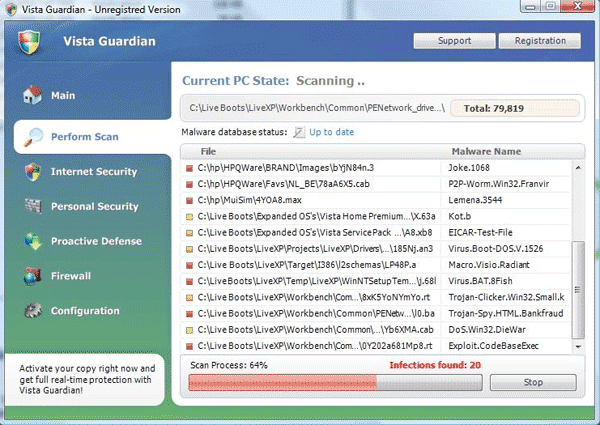
Start removing Vista Guard malware as soon as you noticed its presence. Download our suggested tool to find and delete all files and registry values dropped by this virus. Perform as what is instructed on the guide below to ensure complete uninstall of Vista Guard from the infected computer.
What are the Symptoms of Vista Guard Infection?
It will modify Windows Registry and add the following entries:
HKEY_CURRENT_USER\Software\Classes\.exe\shell\open\command “(Default)” = “%UserProfile%\Local Settings\Application Data\pw.exe” /START “%1” %*
HKEY_CURRENT_USER\Software\Classes\pezfile\shell\open\command “(Default)” = “%UserProfile%\Local Settings\Application Data\pw.exe” /START “%1” %*
HKEY_CLASSES_ROOT\.exe\shell\open\command “(Default)” = “%UserProfile%\Local Settings\Application Data\pw.exe” /START “%1” %*
HKEY_CLASSES_ROOT\pezfile\shell\open\command “(Default)” = “%UserProfile%\Local Settings\Application Data\pw.exe” /START “%1” %*
HKEY_LOCAL_MACHINE\SOFTWARE\Clients\StartMenuInternet\FIREFOX.EXE\shell\open\command “(Default)” = “%UserProfile%\Local Settings\Application Data\pw.exe” /START “C:\Program Files\Mozilla Firefox\firefox.exe”
HKEY_LOCAL_MACHINE\SOFTWARE\Clients\StartMenuInternet\FIREFOX.EXE\shell\safemode\command “(Default)” = “%UserProfile%\Local Settings\Application Data\pw.exe” /START “C:\Program Files\Mozilla Firefox\firefox.exe” -safe-mode
HKEY_LOCAL_MACHINE\SOFTWARE\Clients\StartMenuInternet\IEXPLORE.EXE\shell\open\command “(Default)” = “%UserProfile%\Local Settings\Application Data\pw.exe” /START “C:\Program Files\Internet Explorer\iexplore.exe”
HKEY_CURRENT_USER\Software\Classes\pezfile
HKEY_CLASSES_ROOT\pezfile
The threat will drop the following malicious files:
%UserProfile%\Local Settings\Application Data\pw.exe
%UserProfile%\Local Settings\Application Data\MSASCui.exe
%UserProfile%\AppData\Local\pw.exe
%UserProfile%\AppData\Local\MSASCui.exe
How to Remove Vista Guard Manually
1. Restart your computer in SafeMode
– After Power-On the computer, just before Windows start, press F8
– From the selections, Select SafeMode
2. Remove Registry entries that the threat added. You MUST BACKUP YOUR REGISTRY FIRST.
– Click Start > Run
– Type in the field, regedit
– Navigate and look for the registry entries mentioned above and delete if necessary
3. Delete malicious files that the threat added:
– Base on the given location above, browse and delete the file
– If no location is given, click Start>Search> and search for the files.
– If cannot be deleted, press Ctrl+Alt+Del to access Task Manager, see if the file is running in the process. If it is, select the file and click End Process. Perform file delete again.
4. Scan computer with Antivirus Program
– Update antivirus program
– Scan computer and delete all detected threats.
How to Easily Remove Vista Guard
1. Download and run anti-malware tool. Click here to begin the download. Once complete, double-click on the file to launch the program. Run a thorough scan on the infected computer and let the tool find and delete harmful entries.
