

SystemPro 2011 will pretend as a professional computer security program. This malware will attempt to intimidate computer users by producing fake alerts and warning messages stating that computer is harmed by various kinds of threats. A false scan will be performed on the affected computer as another means to convince victim that a registered version is needed. Sometimes called as System Pro 2011 virus, this type of program can easily penetrate a computer with known security vulnerabilities spotted by an associated Trojan. If successfully got into the system, this Trojan will modify registry and drop system files essential for the operation of SystemPro 2011. After installation, you will never operate the computer as normal as before the virus arrived.
With a well-designed graphical user interface for its virus scanning, some can be easily be deceived about the legitimacy of this program. Task bar alerts and warning messages are deliberately created to look like Windows own pop-up. Any click initiated on these signs will open up new browser window allowing users to pay for the registration key. Credit card details are demanded for the payment of SystemPro 2011.
After paying for this fake security tool, you did not only lose money. You might as well give your credentials to malware authors. SystemPro 2011 payment web site will record all data that users have filled-up including credit card numbers and pin code. With these details in the wrong hands, it is better to contact your credit card company to prevent further charges.
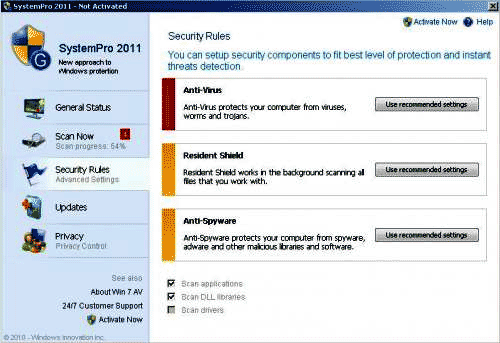
You must remove SystemPro 2011 right away. This virus can contact a remote server to download other malware. For a complete removal procedure we have made simple guides to uninstall SystemPro 2011 from infected computer.
What are the Symptoms of SystemPro 2011 Infection?
It will modify Windows Registry and add the following entries:
HKEY_CURRENT_USER\Software\Microsoft\Windows\CurrentVersion\RunOnce “”
The threat will drop the following malicious files:
c:\Documents and Settings\All Users\Application Data\[random]\
c:\Documents and Settings\All Users\Application Data\[random]\[random]
c:\Documents and Settings\All Users\Application Data\[random]\[random].exe
How to Remove SystemPro 2011 Manually
1. Restart your computer in SafeMode
– Press F8 on keyboard as soon as you turn on the computer
– Select SafeMode to start the computer loading only minimal resources
2. Delete Windows registry entries the malware created. It is important to BACKUP YOUR REGISTRY FIRST.
– On Windows Start Menu, Click Start > Run
– Type in the field, regedit
– Find registry entries mentioned above and delete if necessary
3. Files related to SystemPro 2011 must be deleted:
– Browse and delete malicious files detected above.
– Some files cannot be deleted instantly. Press Ctrl+Alt+Del to open Windows Task Manager, look for any virus-related files mentioned on this page and highlight it, click End Process. Try to delete the file once more.
4. Run Antivirus Program
– You must be connected to Internet to be able to update your anti-virus program. This is needed to have the latest database available and detect newer threats.
– Thoroughly scan the computer and clean or delete all detected threats.
How to Easily Remove SystemPro 2011
1. Print this procedure as we need to close all running programs later.
2. Download AntiMalware Application here and save it to your Desktop.
3. Close all open applications.
4. Double-Click on the downloaded mbam-setup.exe to start the installation. If unable to execute, infections on computer is preventing it from running, rename the file mbam-setup.exe to anything (like myfile.exe)
5. Run the installation on the default settings. No changes are necessary.
6. Just before completing the installation, make sure that the following are marked check.
– Update the program
– Launch the program
7. The tool will run and update itself after installation. Close it after the update.
8. Restart your computer in SafeMode
– After Power-On the computer, just before Windows start, press F8
– From the selections, Select SafeMode
9. Click on the icon and start to Perform Full Scanto begin scanning your computer for SystemPro 2011 related files.
10. After scanning, a message will appear stating that the scan is completed successfully. Click OK.
11. Click Show Results and detected threats will be displayed.
12. Make sure that all threats are marked check, then click Remove Selected to begin removal of the malicious files.
13. Exit AntiMalware Apps and restart your computer.
14. SystemPro 2011 and all its files are now removed from your computer. To guard your computer from this threat and avoid future infections, you may want real-time protection from a full version of anti-malware program..
