

There is a rogue program named Reimage PC Repair spreading on the internet pretending to be a PC cleaner and optimization app.
If you have willfully or unintentionally downloaded and installed the Reimage PC Repair on your system, it is recommended not to use it and get rid of it as soon as possible.
In this guide, we would discuss what Reimage PC Repair is and how to remove it from the system altogether.
What is Reimage PC Repair?
Reimage PC Repair is a fake software program that presents itself as a PC cleaner and optimizer pretending to help in running the PC smoothly by removing the harmful files and killing the unnecessary processes.
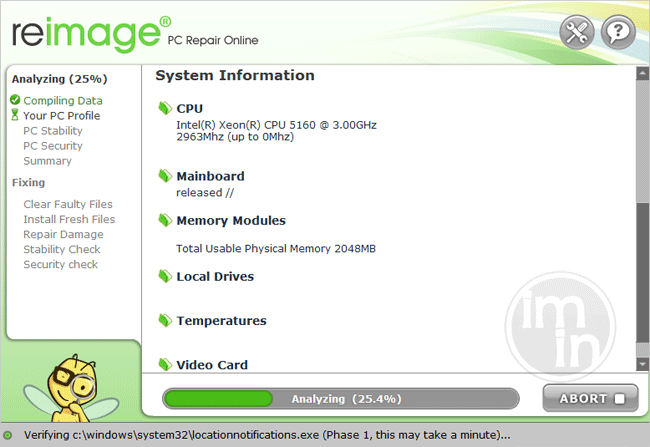
In reality, it is a Potentially Unwanted Program (PUP) that trick users to install its fake premium version by raising the false positives and fake warnings.
Reimage PC Repair would first scan your system for invalid system entries, invalid startup entries, invalid DLLs, or broken links to raise the bogus warnings. As soon as you click to resolve the originated issues, the program would ask you to purchase the premium version for completing the action.
How did Reimage PC Repair get into my System?
The unwanted program such as Reimage PC Repair usually infiltrates your system through bundled software programs. Many uninformed users never monitor the installation process and recklessly install the apps without unchecking the additional program being installed along with the main program.
Other ways through which Reimage PC Repair might enter your system is by a drive-by download, infected ads banners, and more.
Reimage PC Repair Threat Summary
| Threat Name | Reimage PC Repair |
| Type | Potentially Unwanted Program (PUP) |
| Brief Description | It tricks users to purchase the premium version of the program to optimize their PC |
| Removal Tool | ▼ DOWNLOAD MalwareFox |
How to remove the Reimage PC Repair?
There are two ways to remove the Reimage PC Repair – Manual and Automatic. It is recommended to follow the Automatic way to remove the malicious PUP entirely and efficiently. The automatic method is actually cleaning the PC using an antimalware program.
Remove Reimage PC Repair Manually
Step 1 – Uninstall Reimage PC Repair Program from Control Panel
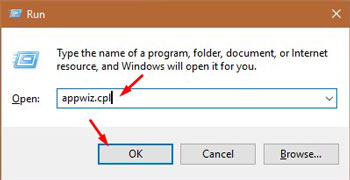
Press Win+R button to open the Run box.
Type appwiz.cpl in the box then press OK.
There you will see the list of all the programs. Find the suspicious applications, right-click on them, and choose Uninstall.
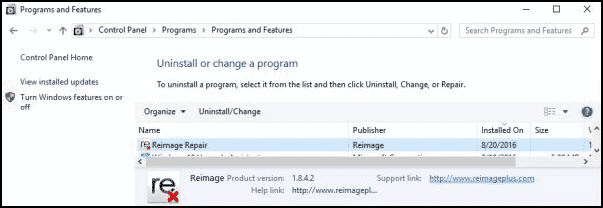
Now follow the instructions to uninstall the application.
Step 2 – Reset the Browsers to Remove Malicious Programs
Malicious program Browser hijacker hijacks the settings of your browser like homepage, new tab, and default search engine. It can cause unintentional downloads like Reimage PC Repair or other PUPs. You cannot change the settings without removing the hijacker. To remove it you need to reset the browsers. Reset any or all of your browsers by following the instructions provided in the below guides.
- Google Chrome Reset Guide
- Mozilla Firefox Reset Guide
- Microsoft Edge Reset Guide
- Internet Explorer Reset Guide
Automatically Remove Reimage PC Repair
To remove Reimage PC Repair automatically, we will be taking the help of a strong antimalware MalwareFox. The MalwareFox is capable of detecting, cleaning, and stoping threats like ransomware, spyware, keyloggers, rootkits, adware, and PUPs. Download MalwareFox to proceed with the steps.
Open the MalwareFox installer and follow the instructions to install MalwareFox on your computer.
Once the MalwareFox installation completes, let it update the program and the signature database.

Now click on the Scan button.
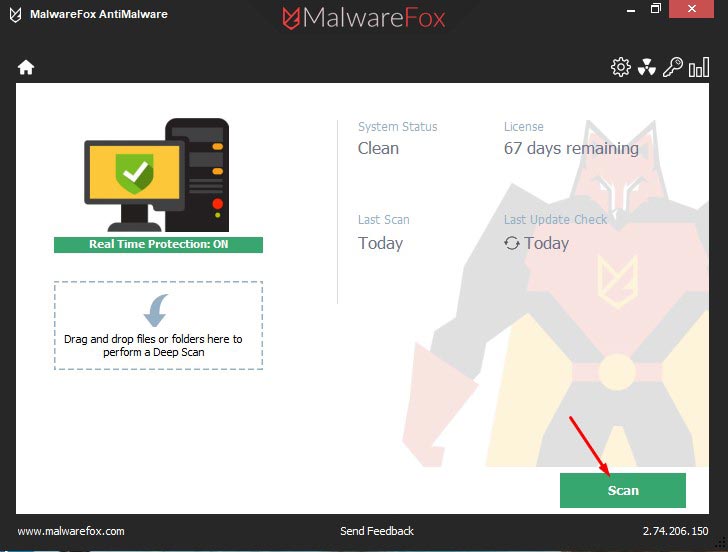
Once the scan completes, click on Next to remove the threats from your PC.
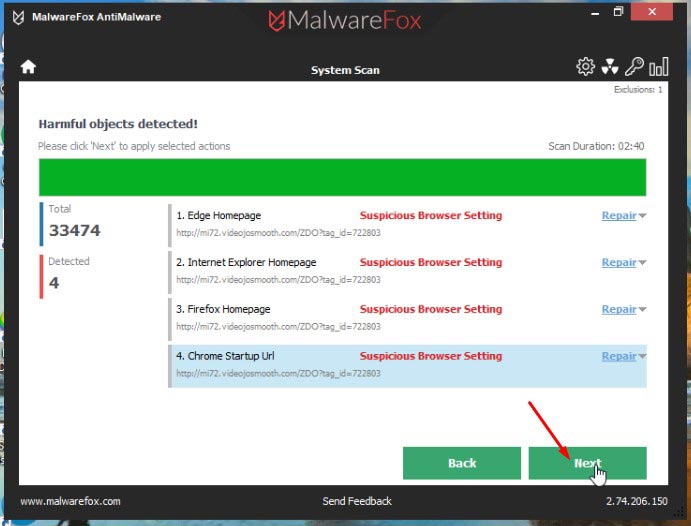
You have successfully removed the Reimage PC Repair from your PC.
How to keep your System safe from Reimage PC Repair?
It is essential to stay away from PUP such as Reimage PC Repair as they may cause many more significant threats to the system. Here are the tips to stay away from harmful unwanted programs.
- Carefully monitor the applications you are installing and uncheck any unnecessary app getting installed along with the primary software.
- Do not click any intriguing ad banner in the greed of getting freeware.
- Avoid downloading and installing applications from unverified and untrustworthy sources.
- Some malicious programs like browser hijacker can control the browser and automatically download the PUPs like Reimage PC Repair. Ensure to detect and remove such malware.
- Always keep installed a robust antimalware like MalwareFox on your system. It is better to get it beforehand rather than after the malware infection.
