

Malware Defense is another computer security program that one must be avoided completely. Malware Defense Trojan is so harmful that it can make devastating modifications on computer, making it unstable and sometime entirely unusable. Malware Defense is circulated over the Internet and a number of its own fake security website was also observed. Malware Defense websites is armed with a malicious scripts that will download and install this rogue program on visitors computer without a notice. A couple of taskbar alerts and warning messages will pop-up coming from Malware Defense reminding you that computer is infected with various kind of security risks. A prompt to buy the program will be returned when users tried to clean threats on computer using Malware Defense. Remember, to be able to remove rogue programs from computer like Malware Defense, you must use only legitimate and trusted security applications.
What are the Symptoms of Malware Defense Infection?
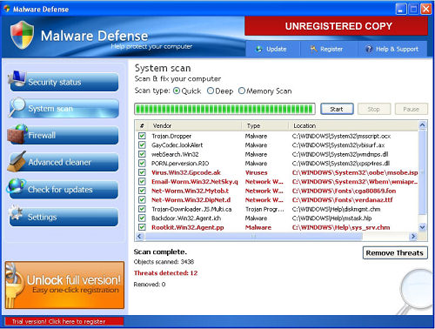
The fake virus scanner of Malware Defense will provide false result to mislead computer users.
It will modify Windows Registry and add the following entries:
- HKEY_LOCAL_MACHINE\SOFTWARE\Malware Defense
- HKEY_CURRENT_USER\Software\Microsoft\Windows\Current Version\Run “Malware Defense”
- HKEY_CLASSES_ROOT\*\shellex\ContextMenuHandlers\SimpleShlExt
- HKEY_CLASSES_ROOT\CLSID\{5E2121EE-0300-11D4-8D3B-444553540000}
- HKEY_CLASSES_ROOT\Folder\shellex\ContextMenuHandlers\SimpleShlExt
The threat will drop the following malicious file/files:
- %UserProfile%\Desktop\Malware Defense Support.lnk
- %UserProfile%\Desktop\Malware Defense.lnk
- %UserProfile%\Start Menu\Programs\Malware Defense
- %UserProfile%\Start Menu\Programs\Malware Defense\Malware Defense Support.lnk
- %UserProfile%\Start Menu\Programs\Malware Defense\Malware Defense.lnk
- %UserProfile%\Start Menu\Programs\Malware Defense\Uninstall Malware Defense.lnk
- %Program Files%\Malware Defense
- %Program Files%\Malware Defense\help.ico
- %Program Files%\Malware Defense\md.db
- %Program Files%\Malware Defense\mdefense.exe
- %Program Files%\Malware Defense\mdext.dll
- %Program Files%\Malware Defense\uninstall.exe
How to Remove Malware Defense Manually
1. Restart your computer in SafeMode
– After Power-On the computer, just before Windows start, press F8
– From the selections, Select SafeMode
2. Remove Registry entries that the threat added. You MUST BACKUP YOUR REGISTRY FIRST.
– Click Start > Run
– Type in the field, regedit
– Navigate and look for the registry entries mentioned above and delete if necessary
3. Delete malicious files that the threat added:
– Base on the given location above, browse and delete the file
– If no location is given, click Start>Search> and search for the files.
– If cannot be deleted, press Ctrl+Alt+Del to access Task Manager, see if the file is running in the process. If it is, select the file and click End Process. Perform file delete again.
4. Scan computer with Antivirus Program
– Update antivirus program
– Scan computer and delete all detected threats.
How to Easily Remove Malware Defense
1. Download and run Removal Tool to remove Malware Defense
