

Cyber Protection Center is another malicious program that can be dropped and installed on computer without a notice. Authors of this program uses Trojan to spread it by exploiting security vulnerabilities on computer. They will also take advantage of the technologically innocence and computer security ignorance of their victims. Cyber Protection Center comes bundled with another rogue program Cyber Security. Both shares the same goal of selling the unwanted program by intimidating users with fake alerts and warning messages.
If got infected with Cyber Protection Center virus, it is best to scan with a known and legit antivirus and antimalware programs. Refrain from removing detected malware with the same rogue program otherwise you will end up buying it at the payment website created primarily for the fraudulent transactions. Removal of Cyber Protection Center virus is included at the end of this page. Please follow the procedure carefully.
What are the Symptoms of Cyber Protection Center virus Infection?
Virus scan will be executed after installtion. Numerous fabricated threat will be detected.
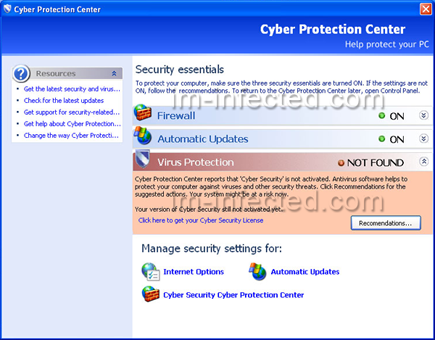
It will modify Windows Registry and add the following entries:
- HKEY_LOCAL_MACHINE\SOFTWARE\Microsoft\Windows\Current Version\Cyber Protection Center
- HKEY_CURRENT_USER\Software\Microsoft\Windows\Current Version\Run\wow64main.exe
HKEY_CURRENT_USER\Software\Microsoft\Windows\Current Version\Run “Randon Letters and Numbers”
The threat will drop the following malicious file/files:
- %Program Files%\CPC\cpc.exe
- %Program Files%\CPC\cyberprotectioncenter.exe
- %Program Files%\CPC\system.dat
- cpc.exe
- winsource.dll
- Help.lnk
- Registration.lnk
- Cyber Protection Center.lnk
How to Remove Cyber Protection Center Virus Manually
1. Restart your computer in SafeMode
– After Power-On the computer, just before Windows start, press F8
– From the selections, Select SafeMode
2. Remove Registry entries that the threat added. You MUST BACKUP YOUR REGISTRY FIRST.
– Click Start > Run
– Type in the field, regedit
– Navigate and look for the registry entries mentioned above and delete if necessary
3. Delete malicious files that the threat added:
– Base on the given location above, browse and delete the file
– If no location is given, click Start>Search> and search for the file.
– If cannot be deleted, press Ctrl+Alt+Del to access Task Manager, see if the file is running in the process. If it is, select the file and click End Process. Perform file delete again.
4. Scan computer with Antivirus Program
– Update antivirus program
– Scan computer and delete all detected threats.
How to Easily Remove Cyber Protection Center
1. Print this procedure as we need to close all programs running later.
2. Download AntiMalware Application here and save it to your Desktop.
3. Close all open applications.
4. Double-Click on the downloaded mbam-setup.exe to start the installation. If unable to execute, infections on computer is preventing it from running, rename the file mbam-setup.exe to anything (like myfile.exe)
5. Run the installation on the default settings. No changes are necessary.
6. Just before completing the installation, make sure that the following are marked check.
– Update the program
– Launch the program
7. The tool will run and update itself after installation. Close it after the update.
8. Restart your computer in SafeMode
– After Power-On the computer, just before Windows start, press F8
– From the selections, Select SafeMode
9. Click on the icon and start to Perform Full Scan to begin scanning your computer for Cyber Protection Center related files.
10. After scanning, a message will appear stating that the scan is completed successfully. Click OK.
11. Click Show Results and detected threats will be displayed.
12. Make sure that all threats are marked check, then click Remove Selected to begin removal of the malicious files.
13. Exit AntiMalware Apps and restart your computer.
14. Cyber Protection Center and all its files are now removed from your computer. To guard your computer from this threat and avoid future infections, you may want real-time protection from a full version of anti-malware program..

What happens if you ordered the cyber security with a credit card believing that it was real?
It remains in your computer doing the same thing. Though your credit card will be charge.
Malwarebytes’ detected a worm but I still cannot reboot into Windows other than safe mode. Also cannot connect to web pages. Any suggestions.
The following fixed the problem on my PC.
Download The Avenger by Swandog46 from hxxp://swandog46.geekstogo.com/avenger2/download.php
[*]Unzip/extract it to a folder on your desktop.
[*]Double click on avenger.exe to run The Avenger.
[*]Click OK.
[*]Make sure that the box next to Scan for rootkits has a tick in it and that the box next to Automatically disable any rootkits found does not have a tick in it.
[*]Copy all of the text in between the dashed lines, but excluding the dashed lines by highlighting it and then pressing Ctrl+C.
——————————————
Files to delete:
C:\Program Files\CS\cs.exe
C:\WINDOWS\VDM1EF.tmp
C:\WINDOWS\VDM36.tmp
C:\WINDOWS\VDM18C.tmp
C:\WINDOWS\VDM16B.tmp
C:\WINDOWS\VDM155.tmp
C:\WINDOWS\VDM6C2.tmp
C:\WINDOWS\VDM195.tmp
C:\WINDOWS\VDM87.tmp
C:\WINDOWS\VDM22.tmp
C:\WINDOWS\VDM438.tmp
C:\WINDOWS\VDM395.tmp
C:\WINDOWS\VDM108.tmp
C:\WINDOWS\VDMAC.tmp
C:\WINDOWS\VDM97.tmp
C:\WINDOWS\VDM43.tmp
C:\WINDOWS\VDM300.tmp
C:\WINDOWS\VDM2AB.tmp
C:\WINDOWS\VDM2AA.tmp
C:\WINDOWS\VDM1DD.tmp
C:\WINDOWS\VDM133.tmp
C:\WINDOWS\VDMB6.tmp
C:\WINDOWS\VDM9B.tmp
C:\WINDOWS\VDM42.tmp
C:\WINDOWS\VDM86F.tmp
C:\WINDOWS\VDM854.tmp
C:\WINDOWS\VDM838.tmp
C:\WINDOWS\VDM7F0.tmp
C:\WINDOWS\VDM795.tmp
C:\WINDOWS\VDM44C.tmp
C:\WINDOWS\VDM350.tmp
C:\WINDOWS\VDMF3.tmp
——————————————
[*]In the avenger window, click the Paste Script from Clipboard, button.
[*]Click the Execute button.
[*]You will be asked “Are you sure you want to execute the current script”
[*]Click Yes.
[*]You will now be asked First step completed — The Avenger has been successfully set up to run on next boot. Reboot now?.
[*]Click Yes.
[*]Your PC will now be rebooted.
[*]Note: If the above script contains Drivers to delete: or Drivers to disable:, then The Avenger will require two reboots to complete its operation.
[*]If that is the case, it will force a BSOD on the first reboot. This is normal & expected behavior.
[*]After your PC has completed the necessary reboots, a log should automatically open. If it does not automatically open, then the log can be found at %systemdrive%\avenger.txt (typically C:\avenger.txt).
[*]Please attach this scan log. Even if you experience errors with the program, please check for the log in the above mentioned location.