

BSA (Business Software Alliance) that asked for MoneyPack code to unlock the computer is another malware in disguise. It comes from a group called Reveton. All threats from this family aim on deceiving computer users by pretending to be from Police agency or Authorities that watch the Internet for illegal activities.
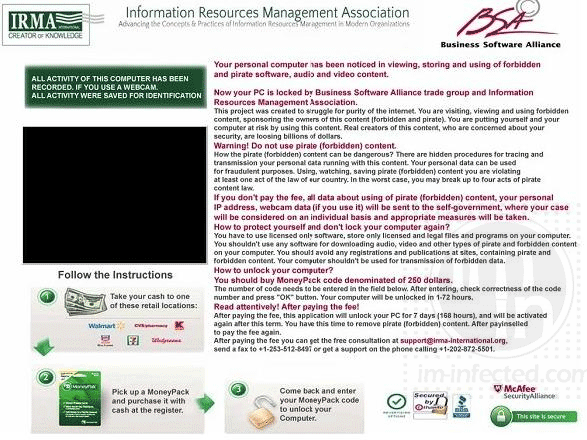
BSA virus in particular will charge user of copyright violation. It starts the warning with a sentence like “Your personal computer has been noticed in viewing, storing, and using forbidden and pirated software, audio, and video content.” This fake warning will appear after the threat have manages to change settings into the computer. BSA MoneyPack virus then locks the desktop and demands for the unlock code to regain access to the computer.
There is other way to recover your PC from BSA MoneyPack virus. First, you must remove the malware from the system. Using a tool specifically crafted to fight this kind of threat will be the main device in solving this problem. You also need to remove the Trojan that drops the BSA virus. Complete removal instructions for this malware is provided on the special section below.
What are symptoms of BSA – MoneyPack Virus Infection?
BSA (Business Software Alliance) displays a top-most screen that displaces the default desktop on the infected computer. It then asks user to unlock the PC by entering a MoneyPack code that is available from retail outlets and convenience stores.
Threat Summary
| Threat Name: | Business Software Alliance (BSA) |
| Type: | RansomLock |
| Brief Description: | This type of malware locks the computer or desktop making it unusable. |
Description
BSA (Business Software Alliance) that asked for MoneyPack code to unlock the computer is another malware in disguise. It comes from a group called Reveton. All threats from this family aim on deceiving computer users by pretending to be from Police agency or Authorities that watch the Internet for illegal activities.
BSA virus in particular will charge user of copyright violation. It starts the warning with a sentence like “Your personal computer has been noticed in viewing, storing, and using forbidden and pirated software, audio, and video content.” This fake warning will appear after the threat have manages to change settings into the computer. BSA MoneyPack virus then locks the desktop and demands for the unlock code to regain access to the computer.
There is other way to recover your PC from BSA MoneyPack virus. First, you must remove the malware from the system. Using a tool specifically crafted to fight this kind of threat will be the main device in solving this problem. You also need to remove the Trojan that drops the BSA virus. Complete removal instructions for this malware is provided on the special section below.
What are symptoms of BSA – MoneyPack Virus Infection?
BSA (Business Software Alliance) displays a top-most screen that displaces the default desktop on the infected computer. It then asks user to unlock the PC by entering a MoneyPack code that is available from retail outlets and convenience stores.
Procedures to Remove Business Software Alliance (BSA)
Download FREE Removal Tool
Removal steps on this page will help you get rid of the threat effectively using tools and virus scanners. Please make sure that you will carry out the guide in exact order.
Create a USB Bootable Device
Ransom Trojans and viruses will lock the screen and makes the computer unusable. Common ways to deal with this type of infection is to boot the PC using another device. For this tutorial we will do a bootable disk that contains Business Software Alliance (BSA) remover.
1. Download Kaspersky Rescue Disk from their official server. Click the button below. The file will be in .ISO format.

2. Download this utility called rescue2usb to record your .ISO file into the USB drive. Obviously you need a USB thumb drive at least 512MB in capacity. Plug it to the computer.

3. Once you have the two programs, double-click on the rescue2usb.exe to start creating a bootable USB drive.
4. You will see on the screen in the program called Kasperksy USB Rescue Disk Maker. Click on Browse and locate the .ISO file.
5. Under USB Medium, select the proper drive of your USB device.
6. Click on START. It will now begin to create a bootable USB drive with Kaspersky Rescue Disk in it.

Start the Computer with Kaspersky Rescue Disk.
1. You must set the computer to use other bootable device aside from hard drive. For this procedure, enable your BIOS to boot to USB device. If you are not familiar with this, please refer to your computer's instruction manual.
2. Another option is to access the Boot Menu right after you turn one the PC. It will present a Menu so that you can select a preferred boot drive. Select Removable Devices.

3. Your computer will now start and load Kaspersky Rescue Disk.
4. If you see a message on the screen, please Press any key to enter the menu. You only have 10 seconds to do this, otherwise it will boot with the hard drive.

5. Next screen will be the interface language. Please select desired language to use.
6. You must run the program in Graphic Mode. This gives you easy access to all commands and menus.
7. End User License Agreement will appear. Please accept to continue using the program. Press 1 to proceed.
Using WindowsUnlocker to Remove Business Software Alliance (BSA)
1.Click on the K button at the lower left corner of the screen.

2. Select Terminal on the list. It will open a command prompt.
3. Type windowsunlocker and press Enter on your keyboard.

4. On WindowsUnlocker menu, please type 1 to Unlock Windows. This utility will clean the registry for malicious entries.

5. After the cleanup process, it will display the menu once more.
6. Press 0 on your keyboard to exit WindowsUnlocker.
Run a Virus Scan
1. After removing Business Software Alliance (BSA), you need to delete all remaining components.
2. Click on the K to display the menu.

3. Select Kaspersky Rescue Disk. This will open the virus scanning tool.
4. You need to update the program first. Select My Update Center tab and click on Start update. This requires an Internet connection.

5. After updating the program, select Object Scan tab and click on Start Object Scan. You must scan the following:
- Disk boot sectors
- Hidden startup objects
- All drives
6. Scanning the entire hard drive may take some time. Please let the scan to finish.
7. Once the scan process is complete, the tool will prompt you for preferred actions on detected threats. Deleting all threats is recommended.
8. You can now turn off the computer, unplug the USB drive, and start Windows in normal mode.
