

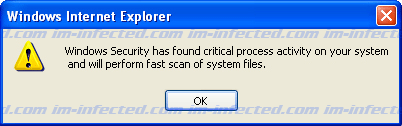
Pop up message “Windows Security has found critical process activity on your system…” is issued by rogue security software to induce users into using their software as a virus removal tool. This fake warning will lead to a more annoying and devastating pop-up alerts when executed. This warning has nothing to do with your Windows system, moreover, your antivirus program do not initiate this alert. Be aware that there are several rogue products that produces this warning and you must be alert on identifying them.
Once a fake antivirus has entered the computer, it will make some changes on the registry. These changes will cause the fake warning to pop-up from time-to-time. Normally, pop-ups will originate from Windows taskbar; however, there are instances that it will appear on the middle of the screen or while you are browsing the web. It appears the same way as real Windows alerts are issued. As you can see, the malware tries to mislead you with bogus messages and pop-up warnings.
The pop-up alert states that:
“Windows Internet Explorer
Windows Security has found critical process activity on your system and will perform fast scan of system files.”
If you are seeing this alert on the computer, you must waste no time. Start scanning the computer with valid antivirus program. Immediate removal of the malware helps prevent your computer from further malware infection. It is observed that the threat can contact a remote server to download other malware.
To guide you in removing the malware that causes “”Windows Security has found critical process activity on your system…” to appear, we have made a simple guide on this page. Be sure to follow the instruction carefully. Tools we provide are effective and most of all; you do not need to pay in order for it to start working. It can scan, detect, and remove malware on your PC. However, protection is not active on this mode. If you need complete protection, activate the full version of the program.
What are the Symptoms of ”Windows Security has found critical process activity on your system…” Infection?
How to Easily Remove Fake Pop-up Alerts:
1. Print this procedure as we need to close all programs running later.
2. Download AntiMalware Application here and save it to your Desktop.
3. Close all open applications.
4. Double-Click on the downloaded mbam-setup.exe to start the installation. If unable to execute, infections on computer is preventing it from running, rename the file mbam-setup.exe to anything (like myfile.exe)
5. Run the installation on the default settings. No changes are necessary.
6. Just before completing the installation, make sure that the following are marked check.
– Update the program
– Launch the program
7. The tool will run and update itself after installation. Close it after the update.
8. Restart your computer in SafeMode
– After Power-On the computer, just before Windows start, press F8
– From the selections, Select SafeMode
9. Click on the icon and start to Perform Full Scan to begin scanning your computer for infected files.
10. After scanning, a message will appear stating that the scan is completed successfully. Click OK.
11. Click Show Results and detected threats will be displayed.
12. Make sure that all threats are marked check, then click Remove Selected to begin removal of the malicious files.
13. Exit AntiMalware Apps and restart your computer.
14. Malware and all its files are now removed from your computer. To guard your computer from this threat and avoid future infections, you may want real-time protection from a full version of anti-malware program..
