

Text Enhance is an adware program that pop-ups advertisement on the affected browser. A type of browser add-ons or extension may be installed without user’s consent. Typically, Text Enhance comes bundled with another program that you may download from suspicious web sites. Once the adware is installed on the PC, you may notice many Text Enhance links all over the web page. Clicking on any of the links will display a pop-up that can redirect Internet browser to the endorsed page, commonly merchandise and service web site that uses Text Enhance to promote their product.
Text Enhance pop-up is not hosted on visited pages or sites. It is activated on your own browser as an add-on or extension. Thus, removing the unwanted program will stop Text Enhance pop-up from appearing when you are browsing the Internet. Follow the systematic procedure on this page to delete the program from several Internet browsers. We assure you that executing the guide provided below will remove Text Enhance and stop the advertisements from showing.
What are the Signs of “Text Enhance” Pop Up?
Primary symptom on presence of Text Enhance is the existence of hyperlinked text on page of any web page you visited. Once you hover the mouse on the hyperlink, it will pop-up the full advertisement window.

Threat Summary
| Threat: | Text Enhance |
| Type: | Browser Hijacker/Toolbar |
| Brief Description: | Unwanted extension that produces malicious toolbar and also hijacks home page of infected browser. |
| Removal Tool: | â–¼ DOWNLOAD MalwareFox |
Text Enhance is an adware program that pop-ups advertisement on the affected browser. A type of browser add-ons or extension may be installed without user’s consent. Typically, Text Enhance comes bundled with another program that you may download from suspicious web sites. Once the adware is installed on the PC, you may notice many Text Enhance links all over the web page. Clicking on any of the links will display a pop-up that can redirect Internet browser to the endorsed page, commonly merchandise and service web site that uses Text Enhance to promote their product.
Text Enhance pop-up is not hosted on visited pages or sites. It is activated on your own browser as an add-on or extension. Thus, removing the unwanted program will stop Text Enhance pop-up from appearing when you are browsing the Internet. Follow the systematic procedure on this page to delete the program from several Internet browsers. We assure you that executing the guide provided below will remove Text Enhance and stop the advertisements from showing.
What are the Signs of “Text Enhance” Pop Up?
Primary symptom on presence of Text Enhance is the existence of hyperlinked text on page of any web page you visited. Once you hover the mouse on the hyperlink, it will pop-up the full advertisement window.
Procedures to Remove Text Enhance
Removal steps on this page will help you get rid of the threat effectively using tools and virus scanners. Please make sure that you will carry out the guide in exact order.
Procedure 1: Uninstall Text Enhance from Windows Control Panel
1. Begin the removal process by uninstalling the adware program from Windows. To do this, we need to open Control Panel. Please ensure that you are logon with the Administrative privilege to access this function.
Accessing Windows 10 Control Panel
- Click on the Windows Start button at lower left corner of the screen.
- Type Control Panel on the search box, and click on its icon on the search result.
- Alternatively, you can just press Windows + X on the keyboard to display Quick Access Menu. Then, click Control Panel.
How to access Control Panel in Windows 8
- The easiest way to access Control Panel on Windows 8 is through the Search function.
- Simply press Windows Key + Q on your keyboard to display the Charms Bar. Alternatively, you can drag mouse pointer to lower-right portion of desktop until the Charms Bar slide-out.
- Click on the Magnifying Glass icon and search for 'Control Panel'. Click the item on the result to access this feature.

How to access Control Panel in Windows XP, Windows Vista/ 7
- Click on Start button that can be found on bottom left corner of the screen.
- From the list, choose Control Panel to access settings of Windows and make the needed changes.

2. Under Programs, click on Uninstall a program. It will open a program and features window where-in you can uninstall, change, or repair installed software.
3. Look for adware title or any suspicious name that was installed recently. To do this, you need to arrange the items chronologically. Click on 'Installed On' to display the latest program that looks unfamiliar.
As observed, this threat is also linked to known malware. You may also look for and delete the following names that were identified with Text Enhance: Better Links, Browser Enhancements, Codec-V, Codec-C, Facetheme, Freemind, I-Livid, I Want That, I Want This, Media Plugin, and VMWare
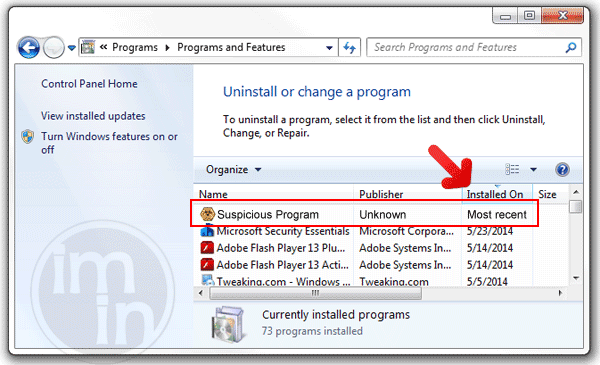
4. Click on Uninstall button to remove the program automatically.
5. If it prompts for confirmation, please click OK to proceed.
Procedure 2: Scan and remove Text Enhance files with MalwareFox Anti-Malware
To remove Text Enhance, download MalwarFox Anti-Malware. This tool is effective in getting rid of Trojans, viruses and malware.

1. After downloading, please install the program using the default settings.
2. At the end of the installation, please make sure that it will download necessary updates.
3. Once update has completed, MalwareFox will launch.

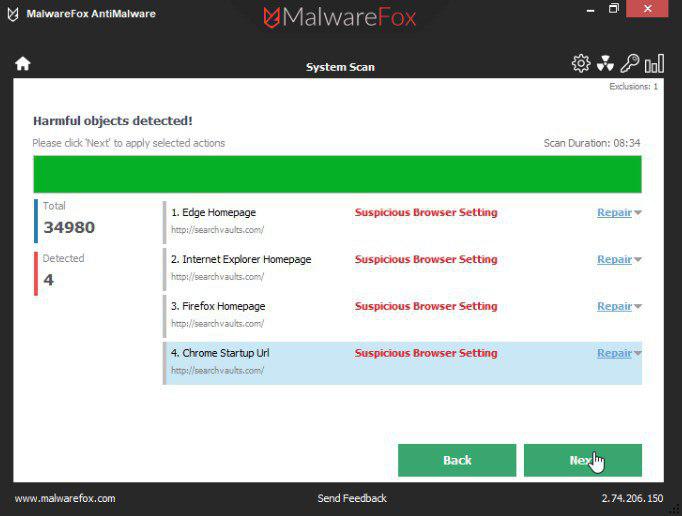
4. Select SCAN from the main window to start detection process.
5. Computer will be thoroughly scanned and all infections will be displayed. Remove all threats detected by this anti-malware program after the process.
Procedure 3: Scan Computer in Safe Mode Using Installed Anti-virus Program
1. In troubleshooting a PC, one common step is to boot operating system into Safe Mode with Networking. The same approach will be used in the removal of Text Enhance. Please execute instructions based on your Windows OS version.
Start Windows 8 / Windows 10 in Safe Mode with Networking
- Please restart the computer and as soon as it begins to start, please press Shift + F8 keys.
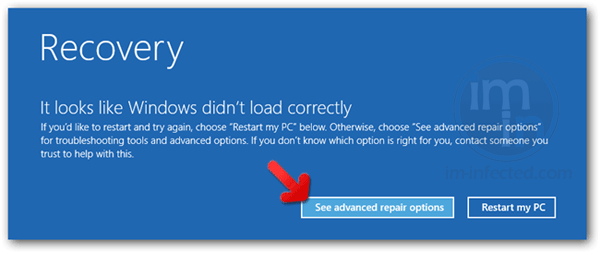
- Instead of seeing Advance Boot Options, latest version of Windows will display Recovery Mode. Continue with the given steps until you reach Safe Mode function.
- Click on 'See advanced repair options'.
- Then, click on Troubleshoot.
- Next, please select Advanced options.
- On the next window, please choose Windows Startup Settings.
- Lastly, click on Restart button. Windows 8 / Windows 10 will now restart and boot into Advanced Boot Option wherein you can run the system in Safe Mode with Networking.
Start in Safe Mode with Networking (Windows XP/Vista/7 Instruction)
- Please restart the computer and just before Windows start, press F8 on your keyboard repeatedly. You will be presented with Advanced Options Menu.
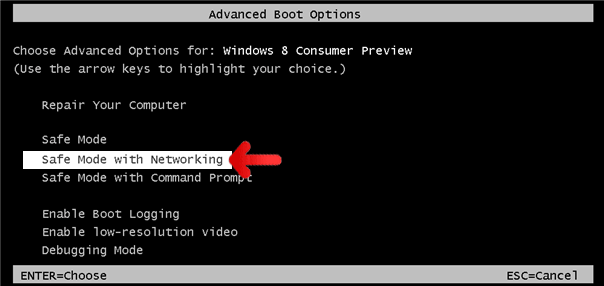
- From the selections, choose Safe Mode with Networking. Please use keyboard's arrow up/down to navigate between selections and press Enter to proceed.

2. Once your Windows is running in Safe Mode, open your installed anti-virus programs and update it to the most recent version by automatically downloading necessary updates.
3. Thoroughly scan the computer and remove all identified threats. Do not restart or turn off the computer after the scan process. You still need to run another scan. Please follow the next procedure.
Procedure 4: Run extra scan with Junkware Removal Tool
To make sure that no more malicious files linked to Text Enhance are inside the computer, we must run another effective scanner. This time, use Junkware Removal Tool. No installation is necessary with this tool.

1. Click the button above to start the download process. Save the file to your preferred location.
2. Junkware Removal Tool will close all running applications later. So, before executing the file, please Bookmark or Print this page. And then, close all programs.
3. Double-click the JRT.exe file to initiate the tool.
4. It will prompt you to "Press any key to continue."

5. Junkware Removal Tool will create a Restore Point and proceed with the scan. Please wait for the scan process to finish.
6. After scanning the computer, JRT will open a Notepad containing scan logs. It may have not find Text Enhance relevant entities, but it will surely delete any malicious items not found in the previous scans.
Procedure 5: Reset Affected Internet Browser
Reset browser settings of Google Chrome:
1. Open Google Chrome browser.
2. In the address bar, type this: chrome://settings/ and then, press Enter.
3. Navigate at the end of the page and click on Show advanced settings.
4. At the bottom of the page, click on Reset settings to remove all changes made by Text Enhance.

Reset Internet Explorer Settings:
1. Open Internet Explorer software.
2. Navigate to top menu and click Tools > Internet Options.
3. On Internet Options window, select Advanced tab.
4. In order to reverse modifications caused by Text Enhance, click on Reset button to bring back Internet Explorer's settings to their default condition.

Reset Firefox to its default state:
1. Open Mozilla Firefox program.
2. Navigate to top menu and Open Help Menu. Then, select on Troubleshooting Information.
3. Click on Refresh Firefox button to erase the effect of Text Enhance.

Protect your PC from Text Enhance or Similar Attack
Turn On Safe Browsing Features
Google Chrome's Protection from Dangerous Sites
With Google Chrome's Dangerous Site Protection feature, you will have lesser risks browsing the web. It will display a warning when the site you are trying to visit is suspicious, thus, you can prevent Text Enhance infection. To enable protection from dangerous sites, please do these steps:
1. Open Google Chrome.
2. In the address bar, type this: chrome://settings/ and then, Press Enter.
3. Once on the settings page, click on Show advanced settings... at the bottom of the page to see the rest of the Chrome setup.
4. Locate Privacy section and mark 'Protect you and your device from dangerous sites'.

5. Please restart Google Chrome. New settings keep your browser safe while surfing the web.
Internet Explorer - Activate SmartScreen Filter
Internet Explorer versions 8 and 9 has this feature called SmartScreen Filter. It helps detect phishing web sites and protect you from downloading malicious programs including Text Enhance. To turn on SmartScreen Filter, follow these steps:
1. Please open Internet Explorer.
2. On top menu, select Tools (IE 9). For IE 8, please look for Safety menu.
3. Select SmartScreen Filter from the drop-down list and click on Turn on SmartScreen Filter.
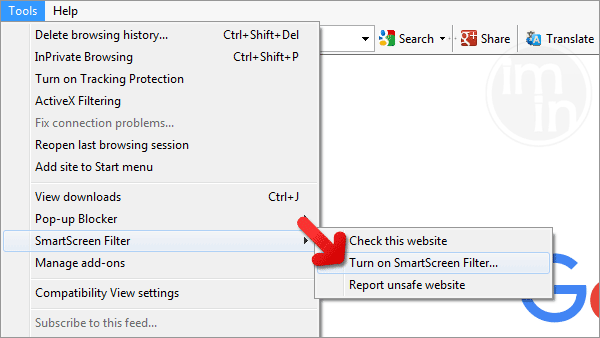
4. Please restart Internet Explorer.
Mozilla Firefox - Block Attack Sites and Web Forgeries
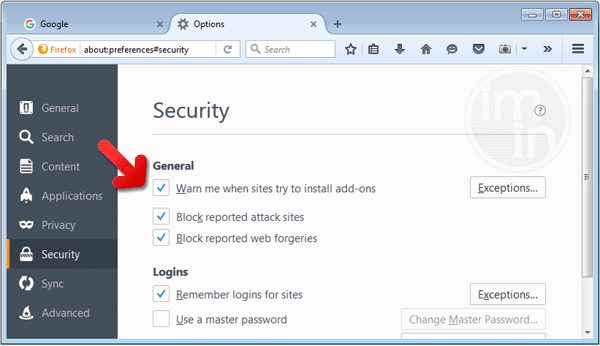
Phishing and Malware Protection is a built-in feature on Firefox version 3 or later. It warns you when a page you are trying to visit contains phishing content or an attack site designed to drop threats such as Text Enhance. To help you keep safe while browsing the Internet using Firefox, please follow this guide:
1. Open Mozilla Firefox browser.
2. On top menu, click on Open Menu. Then select Options from the list.
3. Select Security and put a check mark on the following items:
- Warn me when sites try to install add-ons
- Block reported attack sites
- Block reported web forgeries
Edge Browser - SmartScreen Filter
SmartScreen filter is a built-in feature in Microsoft Edge browser that can help you deter malicious programs such as Text Enhance. It can block malicious web sites and downloads.
1. Open Microsoft Edge browser.
2. Click on More Actions button located at top right corner of the screen.
3. Select Settings from the drop-down list.
4. Under Settings menu, go to Advanced Settings section and click on View Advanced Settings.
5. Scroll down to "help protect my PC from malicious sites and downloads with SmartScreen Filter". Turn it to ON.
6.You may now restart Microsoft Edge browser.


Hi there, I believe my site is infected with Text Enhance as opposed to my browser. I have had several visitors using various browsers complain of seeing TE on my site and only my site. I have also seen TE on a brand new Pro Mac as well as my Android phone – both of which were on the browser default settings.
I just disabled some extensions on Firefox and TE does not pop up my. However, having fixed the issue I then downloaded Chrome from google directly and visited my site and TE pops up.
Why is it only my site? I visit other sites and I cannot see TE.
Any help would be very much appreciated.
I have this same problem and spent the whole day hunting it down. I nearly flipped because there were links to a rival company on my company’s website!!! System Restore couldn’t even fix the problem (I tried twice) because they over-wrote the computer’s administration permissions and locked their files so you can’t delete them. Can you imagine? The site who is responsible for my grief is called SR Search (Social Rival ~ but not the game). Evil genius type people but not very smart… the entire planet will hate them in a matter of weeks!