

Fast Save is an extension for Google Chrome, which is also an Add-on for Mozilla Firefox. We cannot consider it a computer virus since it has diverse characteristics. With the installation of Fast Save on Internet browser without user’s full knowledge, it might be reasonable to tag it as an adware program. This extension is a very invasive type of code that installs itself when you attempt to download Torrent file from peer-to-peer networks.
When Fast Save extension is installed on Chrome or Firefox browsers, user may observe random ads appearing on every visited web site. It overlay small ads at the bottom of images on web pages users are viewing. Users may even disrupt by annoying pauses while watching on YouTube and other video streaming web sites.
Mostly affected by this Fast Save image advertisements are web site owners. Unwanted ads may compete with legitimate ads placed on the web site. Moreover, it affects the performance of the site, which tends to load the page slower than usual. The same reason caused some panic lately for web site owners. They think that malware have affected the sites and scripts are appended to every page to be able to load the advertisement.
Knowing that issue lies behind the Fast Save Internet browser extension, we created a short tutorial to remove the unwanted extension. See the complete guide below.

What is Fast Save?
Fast Save is adware. It is a malicious application that uses several methods to enter your system. In which the prime method of its spreading is software bundling. It is bundled with free or pirated software, and when users install such software, it enters their computer. Its primary purpose is to display ads on your system.
The ads you see due to Fast Save often try to promote fraud and malicious products. This adware has spying capabilities; it tracks your internet activities such as browsing history, search history, IP address, and location. It could even steal your credit card and banking login details.
Fast Save stays hidden in your system by pretending to have some useful features. Users think they have a helpful program installed, but they aren't aware it is displaying malicious ads and tracking them. It is better to remove this adware right now.
Threat Summary
| Threat Name: | Fast Save |
| Type: | Malicious Add-on/Extension |
| Brief Description: | Malicious add-on or extension can perform various unwanted tasks on computer. |
| Removal Tool: | ▼ DOWNLOAD MalwareFox |
Procedures to Remove Fast Save
Removal steps on this page will help you get rid of the threat effectively using tools and virus scanners. Please make sure that you will carry out the guide in exact order.
Procedure 1: Uninstall Fast Save from Windows Control Panel
1. Begin the removal process by uninstalling the adware program from Windows. To do this, we need to open Control Panel. Please ensure that you are logon with the Administrative privilege to access this function.
Accessing Control Panel in Windows 8 and Windows 10
- On your keyboard, Press Windows Key + X.
- Once Quick Access Menu appears on the screen, please click on Control Panel.
- Control Panel window will open. Please proceed to the next step which is uninstalling Fast Save.
How to access Control Panel in Windows XP, Windows Vista / 7
- Click on Start button that can be found on bottom left corner of the screen.
- From the list, choose Control Panel to access settings of Windows and make the needed changes.

2. Under Programs, click on Uninstall a program. It will open a program and features window where-in you can uninstall, change, or repair installed software.
3. Look for adware title or any suspicious name that was installed recently. To do this, you need to arrange the items chronologically. Click on 'Installed On' to display the latest program that looks unfamiliar.
As observed, this pop-up is also linked to known malware. You may also look for and delete the following names that were identified with Fast Save: Fast Save 1.1, SaveAs, Quick Save, Codec-C, or Click2save
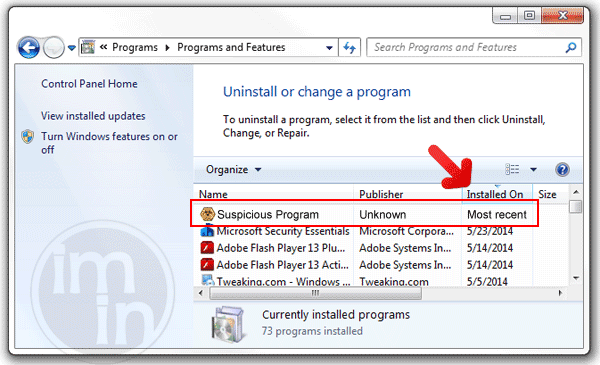
4. Select adware relevant to Fast Save or any suspicious items. Then, click on Uninstall button to remove it from Windows.
5. If it prompts for confirmation, please click OK button to proceed.
Procedure 2: Scan and remove Fast Save files with MalwareFox Anti-Malware
To remove Fast Save, download MalwareFox Anti-Malware. This tool is effective in getting rid of Trojans, viruses and malware.

1. After downloading, please install the program using the default settings.
2. At the end of the installation, please make sure that it will download necessary updates.
3. Once update has completed, MalwareFox will launch.

4. Click on SCAN button to start the detection process.
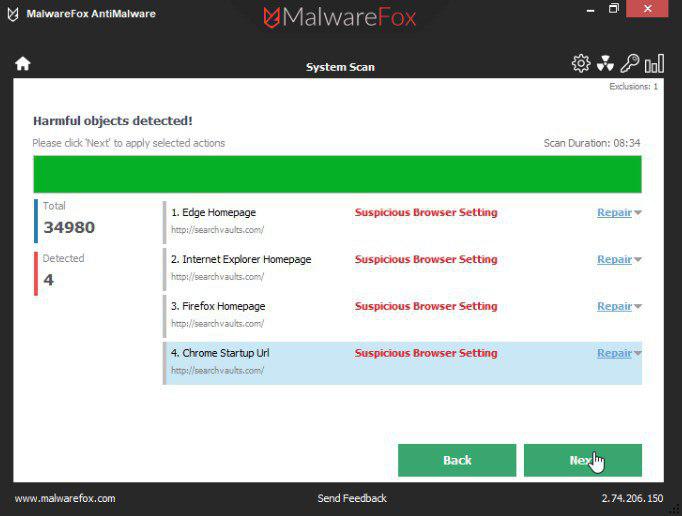
5. After thorough scanning, infection result will be displayed. Remove all threats detected by this anti-malware program after the process.
Procedure 3: Scan Computer in Safe Mode Using Installed Anti-virus Program
1. When troubleshooting a PC, one common step is to boot operating system into Safe Mode with Networking. The same approach will be used in the removal of Fast Save. Please execute instructions based on your Windows OS version.
Start Windows 8 / Windows 10 in Safe Mode with Networking
- Close all running programs on your computer because we will need to restart Windows on this procedure.
- Press and Hold Shift key on your keyboard while clicking on Restart.
- You will then be presented with Troubleshooting Options.
- Click on Troubleshoot icon.
- Then, Click on Advanced Options icon.
- Select Startup Settings icon and then, Click on Restart button.
- When Windows restarts, it will prompt to choose number from the list of options. Press the number on your keyboard that corresponds to Safe Mode with Networking, commonly number 5.
- Once in Safe Mode, please proceed to the next step which is running a virus scan on the computer.
Start in Safe Mode with Networking (Windows XP / Vista / 7 Instruction)
- Please restart the computer and just before Windows start, press F8 on your keyboard repeatedly. You will be presented with Advanced Options Menu.
- From the selections, choose Safe Mode with Networking. Please use keyboard's arrow up/down to navigate between selections and press Enter to proceed.

2. Once your Windows is running in Safe Mode, open your installed anti-virus programs and update it to the most recent version by automatically downloading necessary updates.
3. Thoroughly scan the computer and remove all identified threats. Do not restart or turn off the computer after the scan process. You still need to run another scan. Please follow the next procedure.
Procedure 4: Run extra scan with Junkware Removal Tool
To make sure that no more malicious files linked to Fast Save are inside the computer, we must run another effective scanner. This time, use Junkware Removal Tool. No installation is necessary with this tool.

1. Click the button above to start the download process. Save the file to your preferred location.
2. Junkware Removal Tool will close all running applications later. So, before executing the file, please Bookmark or Print this page. And then, close all programs.
3. Double-click the JRT.exe file to initiate the tool.
4. It will prompt you to "Press any key to continue."

5. Junkware Removal Tool will create a Restore Point and proceed with the scan. Please wait for the scan process to finish.
6. After scanning the computer, JRT will open a Notepad containing scan logs. It may have not find Fast Save relevant entities, but it will surely delete any malicious items not found in the previous scans.
Procedure 5: Reset Affected Internet Browser
Reset browser settings of Google Chrome:
1. Open Google Chrome browser.
2. In the address bar, type this: chrome://settings/ and then, press Enter.
3. Navigate at the end of the page and click on Show advanced settings.
4. At the bottom of the page, click on Reset settings to remove all changes made by Fast Save.

Reset Internet Explorer Settings:
1. Open Internet Explorer software.
2. Navigate to top menu and click Tools > Internet Options.
3. On Internet Options window, select Advanced tab.
4. In order to reverse modifications caused by Fast Save, click on Reset button to bring back Internet Explorer's settings to their default condition.

Reset Firefox to its default state:
1. Open Mozilla Firefox program.
2. Navigate to top menu and Open Help Menu. Then, select on Troubleshooting Information.
3. Click on Refresh Firefox button to erase the effect of Fast Save.

Protect your PC from Fast Save or Similar Attack
Turn On Safe Browsing Features
Google Chrome's Protection from Dangerous Sites
With Google Chrome's Dangerous Site Protection feature, you will have lesser risks browsing the web. It will display a warning when the site you are trying to visit is suspicious, thus, you can prevent Fast Save infection. To enable protection from dangerous sites, please do these steps:
1. Open Google Chrome.
2. In the address bar, type this: chrome://settings/ and then, Press Enter.
3. Once on the settings page, click on Show advanced settings... at the bottom of the page to see the rest of the Chrome setup.
4. Locate Privacy section and mark 'Protect you and your device from dangerous sites'.

5. Please restart Google Chrome. New settings keep your browser safe while surfing the web.
Internet Explorer - Activate SmartScreen Filter
Internet Explorer versions 8 and 9 has this feature called SmartScreen Filter. It helps detect phishing web sites and protect you from downloading malicious programs including Fast Save. To turn on SmartScreen Filter, follow these steps:
1. Please open Internet Explorer.
2. On top menu, select Tools (IE 9). For IE 8, please look for Safety menu.
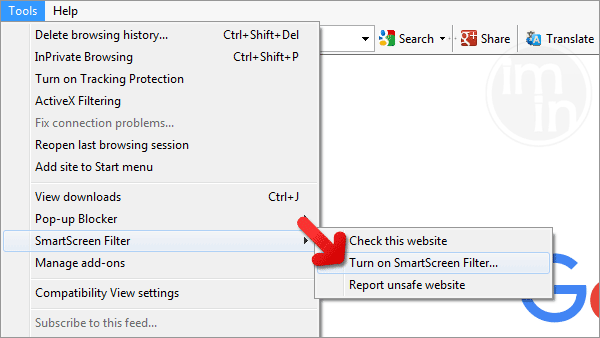
3. Select SmartScreen Filter from the drop-down list and click on Turn on SmartScreen Filter.
4. Please restart Internet Explorer.
Mozilla Firefox - Block Attack Sites and Web Forgeries
Phishing and Malware Protection is a built-in feature on Firefox version 3 or later. It warns you when a page you are trying to visit contains phishing content or an attack site designed to drop threats such as Fast Save. To help you keep safe while browsing the Internet using Firefox, please follow this guide:
1. Open Mozilla Firefox browser.
2. On top menu, click on Open Menu. Then select Options from the list.
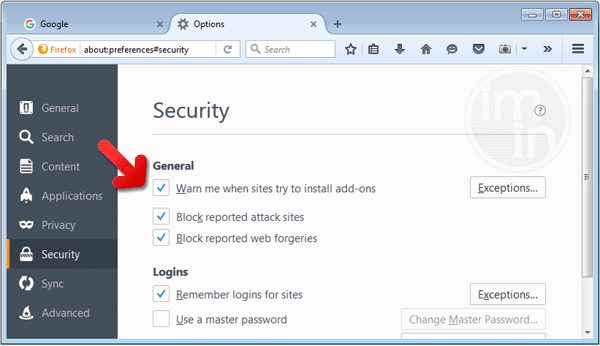
3. Select Security and put a check mark on the following items:
- Warn me when sites try to install add-ons
- Block reported attack sites
- Block reported web forgeries
Edge Browser - SmartScreen Filter
SmartScreen filter is a built-in feature in Microsoft Edge browser that can help you deter malicious programs such as Fast Save. It can block malicious web sites and downloads.
1. Open Microsoft Edge browser.
2. Click on More Actions button located at top right corner of the screen.
3. Select Settings from the drop-down list.
4. Under Settings menu, go to Advanced Settings section and click on View Advanced Settings.
5. Scroll down to "help protect my PC from malicious sites and downloads with SmartScreen Filter". Turn it to ON.
6.You may now restart Microsoft Edge browser.


I’m running Fedora 16, and I also had the fastsave extension installed against my will.
Absolutely fantastic! I have rid of that awful extension, cheers mate!
I have this stupid bug but dont have the fast save extension in google chrome, ive temporarily disbaled 3rd party extensions which helps but need another way of deleting this of my computer.. ive used numerous virus and malware programs but none work.. Any help would be great.
Thanks Aaron
Nice post about Removing Adware
Thanks… that was so annoying…I got it after going to sears.ca…
Please help, I did what you said and I can’t see the extension no where but I still have it… it’s driving me nuts cause it makes my work webpages work funny so it makes my work to go slow… :( SOS
I didn’t have a “fast save” extension but I removed the Codec-C extension and that seems to have solved the problem.
please help this morning i got a big problem with my internet explorer whenever i open it my microsoft essentials complains about 1 potential threat Adware:win32/fastsaveapp and then i click clean and it gets cleaned away but after a few secs it pop up again and again and again and again, its the same every time. and its only effecting my internet explorer not in chrome or anything else o.O so my question is can anybody tell my how to fix this problem ???
I am having the exact same problem as Daniel. It is driving me crazy. When surfing the web, EVERY few seconds, Microsoft Security Essentials pops up telling me that it has detected a potential adware threat. I remove them from my computer but it just keeps happening. I do not have Goggle Chrome and I cannot find a list of “extensions” anywhere. Please help!
Hi All, Like you guys, I have been having the same problem all week, however, only with Windows browser. I found this site here and have followed the advice, unfortunately running 3 browsers, seem to be chasing the thing around my PC! Just by luck my brother phoned from UK. I explained to him what was happening. He said, he found Adobe have Adware that Piggy Back onto the downloads. I just deleted all my Adobe programs and sure enough, no more problems.
Have re-installed the Adobe Flash Player 11 ActiveX, so far — no Adware FastSaveApp.
Will keep a record of Adobe downloads and other downloads, and Adware interference.
Has anyone else experienced similar?
Ken NZ
Oh yes, don’t forget to do a RESTART after you have uninstalled the offending Adobes.
Ken. NZ
How to remove fast save from I.E. ???
It was called “Browse2Save” on my list of extenstions.
I had “FastSave” on Firefox, I think I got it when downloading a torrent or something. It was causing my HuluPlus to not load it’s page, and the way I sent it packing, was to uninstall “Adobe” not the “Adobe plugin” just “Adobe” When I restarted Firefox it automatically updated itself and reinstalled “Adobe” And to my relief, that pain in the ass “FastSave” was gone ! I hope this will work for anyone out there experiencing the same problem. Good luck and let me know if it works for you too.
LaShell WA. State
remove this Adware it annoy me
vendavenda
hi: I dont have chrome but i got this fastsave on my laptop. I uninstall all adobe, still is here. anyone else has a professional suggestion, please, if you really dont know how delete this shiy, better gone or silence.
Thank you
It’s OK for Chrome .. BUT how to Remove Fast Save Extension from Internet Explorer??
How to Remove Fast Save Extension from Internet Explorer???
I went on tools>Manage add-ons>toolbars and extensions, but the Fast Save is not displayed there! Is it possible that it is named differently instead of Fast Save?
How to Remove Fast Save Extension from Internet Explorer???
I went on tools>Manage add-ons>toolbars and extensions, but the Fast Save is not displayed there! Is it possible that it is named differently instead of Fast Save?
I don’t use chrome but have this problem, to remove the problem I went into programmes and features and uninstalled a small programme called browse to save. and all issues sorted