

Windows Enterprise Defender is a self-proclaimed security product for Windows operating system. This program was already categorized as rogue because of its similarity to other unwanted applications like Windows Security Suite and Windows PC Defender. Programs like these were developed primarily to fool computer users and gain monetary benefit from these counterfeit activities. Windows Enterprise Defender operation is somehow organized from Trojan that propagate it up to the payment website where victims can transact payments.
Upon infection, Windows Enterprise Defender will repeatedly alarm users on potential security threats and will always prompt to remove it by acquiring the full version of the program. It will use every scare tactics to deceive the victim until such time that they will be push to payment processing website. Security experts advised to remove Windows Enterprise Defender virus immediately, a removal of this malware can be accomplished for free.
What are the Symptoms of Windows Enterprise Defender Infection?
After beiing downloaded and installed by a Trojan, it will display virus scan on computer.
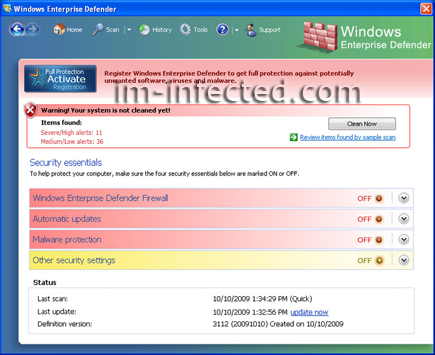
It will modify Windows Registry and add the following entries:
- HKEY_LOCAL_MACHINE\SOFTWARE\Microsoft\Windows\Current Version\Run “Windows Enterprise Defender”
- HKEY_CLASSES_ROOT\CLSID\{3F2BBC05-40DF-11D2-9455-00104BC936FF}
- HKEY_CLASSES_ROOT\WindowsEDefender.DocHostUIHandler
- HKEY_USERS\.DEFAULT\Software\Microsoft\Internet Explorer\SearchScopes “URL” => “hxxp://search-gala.com/?&uid=7&q={searchTerms}”
- HKEY_USERS\S-1-5-18\Software\Microsoft\Internet Explorer\SearchScopes “URL”
- HKEY_CURRENT_USER\Software\Microsoft\Windows\Current Version\Internet Settings\5.0\User Agent\Post Platform “[xSP_2:61a6083b6194a2314e3dd54cf9615e36_7]”
- HKEY_CURRENT_USER\Software\Microsoft\Windows\Current Version\Internet Settings\5.0\User Agent\Post Platform “876902803”
The threat will drop the following malicious files:
- %UserProfile%\Recent\cb.sys
- %UserProfile%\Recent\ddv.dll
- %UserProfile%\Recent\eb.sys
- %UserProfile%\Recent\energy.exe
- %UserProfile%\Recent\pal.sys
- %UserProfile%\Recent\PE.drv
- %UserProfile%\Recent\ppal.exe
- %UserProfile%\Recent\tempdoc.tmp
- c:\Documents and Settings\All Users\Application Data\[Random]\83.mof
- c:\Documents and Settings\All Users\Application Data\[Random]\mozcrt19.dll
- c:\Documents and Settings\All Users\Application Data\[Random]\sqlite3.dll
- c:\Documents and Settings\All Users\Application Data\[Random]\unins000.dat
- c:\Documents and Settings\All Users\Application Data\[Random]\WED.ico
- c:\Documents and Settings\All Users\Application Data\[Random]\WindowsEDefender.exe
- c:\Documents and Settings\All Users\Application Data\[Random]\WEDDSys\[Random].bd
- c:\Documents and Settings\All Users\Application Data\WEDDSys\wed.cfg
- %UserProfile%\Application Data\Microsoft\Internet Explorer\Quick Launch\Windows Enterprise Defender.lnk
- %UserProfile%\Application Data\Windows Enterprise Defender
- %UserProfile%\Application Data\Windows Enterprise Defender\cookies.sqlite
- %UserProfile%\Desktop\Windows Enterprise Defender.lnk
- %UserProfile%\Start Menu\Windows Enterprise Defender.lnk
- %UserProfile%\Start Menu\Programs\Windows Enterprise Defender.lnk
- c:\Program Files\Mozilla Firefox\searchplugins\search.xml
How to Remove Windows Enterprise Defender Manually
1. Restart your computer in SafeMode
– After Power-On the computer, just before Windows start, press F8
– From the selections, Select SafeMode
2. Remove Registry entries that the threat added. You MUST BACKUP YOUR REGISTRY FIRST.
– Click Start > Run
– Type in the field, regedit
– Navigate and look for the registry entries mentioned above and delete if necessary
3. Delete malicious files that the threat added:
– Base on the given location above, browse and delete the file
– If no location is given, click Start>Search> and search for the file.
– If cannot be deleted, press Ctrl+Alt+Del to access Task Manager, see if the file is running in the process. If it is, select the file and click End Process. Perform file delete again.
4. Scan computer with Antivirus Program
– Update antivirus program
– Scan computer and delete all detected threats.
