

Delta-search.com is a browser hijacker that is using add-on or plug-in installation in order to control the web browser program. If you home page is set to Delta Search (yhs.delta-search.com), containing a tailored search box similar to Google, then, the adware have installed an add-on.
The hijacker normally arrives on your PC as bundled to software you may have downloaded from the Internet. It could be games, tools, multi-media player, or any program that appears interesting to computer users. While you are loading the downloaded software, delta-search.com hijacks your home page without a notice. There is however, a prompt if you want to proceed with these changes, but it is almost unnoticeable. Installing the program with the default settings also loads the hijacker and you are letting it do the changes on the computer. Thus, it is important to pay attention whenever you are installing a program. A custom setting may have prevented you from having the delta-search.com home page.
In order to remove delta-search.com from your home page, please follow the guide on this article. We have simple instruction for browsers like Firefox, Chrome, and Internet Explorer. Also, be sure that you will scan the computer with suggested tool to make sure that changes made to the registry are taken back.
What are the Symptoms of delta-search.com hijacker Infection?
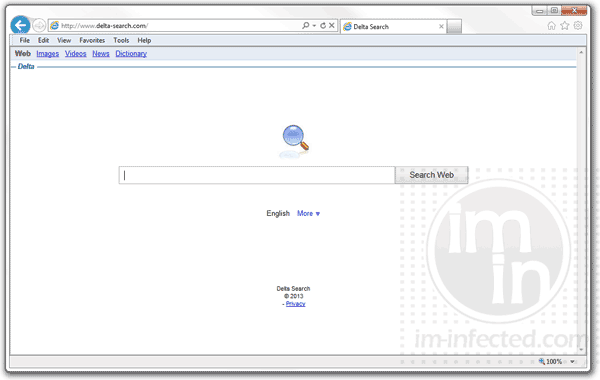
Obvious symptom is constant redirection of home page to delta-search.com. If not redirected, the adware will set this search box as default home page of your browser. See image above for your reference.
What is Delta-search.com?
Delta-search.com is a browser hijacker. It enters your PC using the software bundling method and hijacks the settings of the browsers. It hijacks the homepage, new tab, and default search engine. Whenever you open your browser, you see its default page. If you try to search something on your browser, it records your search query and then redirects you to other search engines for results. Apart from the search query, it also records your IP address, location, browsing history, and some hardware & software information.
All this collected information is sold to third-party clients, who may use it for marketing or other activities such as identity theft. Delta-search.com is a severe risk to your privacy. We advise you to remove it from your PC right now. Follow the below instructions to remove it.
When the Delta-search.com browser hijacker is installed on a device, common symptoms include:
- Changing the web browser’s default homepage to Delta-search.com
- Changing the browser’s search provider and built-in search box to Delta-search.com
- Ability to modify the ‘new tab’ functionality to launch the modified search portal page
- Loads into the web browser via the Live Search extension or add-on
Always opt for the custom/advanced installation mode and deselect anything other than the actual program, especially recommended software that you don't need. In short, you should not install suspicious software.
How to remove Delta-search.com redirect (Virus Removal Guide)
Please perform all the steps in the correct order. If you have any questions or doubt at any point, comment down and we will try to assist you.
To remove the Delta-search.com redirect, follow these steps:
- STEP 1: Uninstall Live Search from Windows
- STEP 2: Use MalwareFox to remove Delta-search.com redirect
- STEP 3: Use HitmanPro to scan for malware and unwanted programs
- STEP 4: Reset the browser settings to remove Delta-search.com
STEP 1 : Uninstall Live Search from Windows
In this first step, we will try to identify and remove any malicious program that might be installed on your computer.
-
Go to “Programs and Features”.
Windows 10
- On the Start menu, type Control Panel in the Cortana search box and then select “Control Panel” from the results.

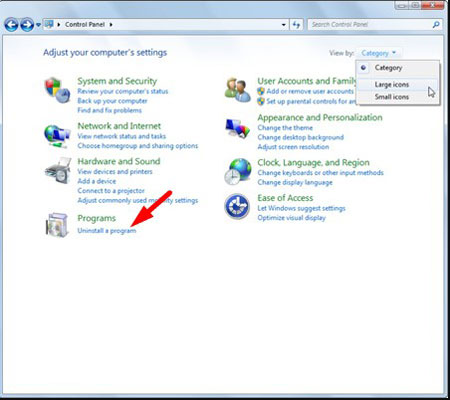
- When the “Control Panel” window opens click on the “Uninstall a program” option under “Programs” category.

Windows 8
Right-click on the Start button and select “Programs and Features”. You will directly reach to the list the of programs installed.
- If there is no Programs and Features in the Start menu, then type “programs and features” into the search bar at the bottom of the Start window, then click the “Programs and Features” result.
- If you don’t see the a Start button, you are likely running Windows 8 instead of Windows 8.1. So, press the Windows key + X to open the menu instead and select “Programs and Features”.
Windows 7
- Click on Start, then click on “Control Panel”.
 If you don’t see “Control Panel” here, type control panel into the search bar at the bottom of the Start window, then click the “Control Panel” result.
 - Once you see the “Control Panel”, click on “ Uninstall a Program” from the Programs category.

- On the Start menu, type Control Panel in the Cortana search box and then select “Control Panel” from the results.
-
Find the malicious program and uninstall it.
Now you will see the list of all installed programs in the PC, carefully observe every program and find Live Search, then select it, and click the “Uninstall” button.
Your PC may have different malicious program thus the name may not match. If you cannot find any unwanted malicious programs on your PC, then you can skip to the next step -
Follow the screen instructions to uninstall the program.
In the next screen prompt, click on Yes, and then follow the prompts to uninstall the program.
Read all screen instructions carefully during installation, because malicious programs always try to trick you in hoping that you won’t read properly.



STEP 2: Use MalwareFox to remove Delta-search.com adware
MalwareFox is antimalware that works on heuristic approach to detect and remove malware from your PC. It analyzes the malware signatures as well as their behaviour. If a program acts like a malware then MalwareFox blocks it right there. It is lightweight on your system resource and finishes the scan quickly.
Its not like I am recommending you to install a costly software to remove the malware. The MalwareFox subscription charges are fairly low. But that is for a fully featured program with real-time protection capabilities. The scanning works even with the free version, though you can try the MalwareFox Premium for 14 days. Also, you don't need to remove your current antivirus, MalwareFox will work effectively without any conflicts.
-
Download MalwareFox.
You can download MalwareFox by clicking the link below.
 MALWAREFOX DOWNLOAD LINK
(The above link will open a new page from where you can download MalwareFox) -
Double-click on the MalwareFox setup file.
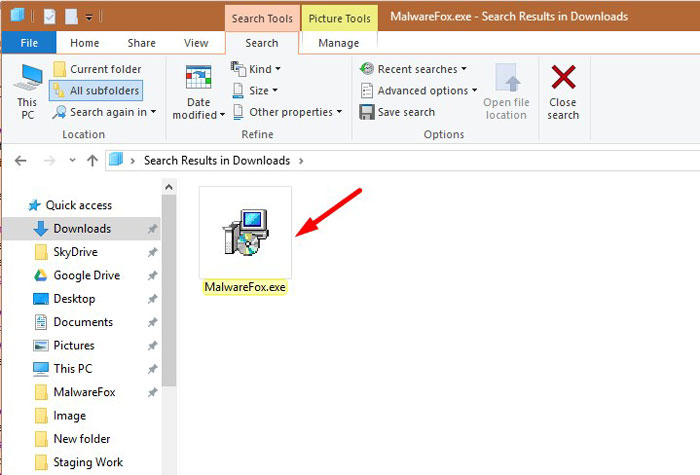
Once the MalwareFox is downloaded, double click on MalwareFox.exe file to install it on your PC. The downloaded files are mostly saved to the Downloads folder.

You will see an User Account Control pop-up asking if you want to allow MalwareFox to make changes to your device. Click on “Yes” to proceed with the installation steps.

-
Follow the on-screen prompts to install MalwareFox.
First MalwareFox installer ask you to choose the language, select your preferend language and click on OK.

Then the MalwareFox installation Wizard appears, click on Next and follow the screen instructions to setup MalwareFox on your PC.

Once the installation is complete, MalwareFox will download the latest version and virus signatures from the server. Let it update.

-
Click on “Scan” Button.
To perform a system scan, click on the “Scan” button.

-
Wait for MalwareFox scan to complete.
MalwareFox is now scanning your computer for adware, pop-ups, browser hijackers, and other malicious programs. This process can take a few minutes, so you can do some other work while it is scanning your PC, don't worry the PC won't get slow during the scan.
-
Click on “Next”.
Once the scan has completed, you will see the list of detected threats on your PC. To remove the malware that MalwareFox has found, click on the “Next” button.
When the malware removal process is complete, you can close MalwareFox and continue with the rest of the instructions.



STEP 3: Use HitmanPro to scan for malware and unwanted programs
HitanPro works on unique cloud-based approach to detect the threats. You can use it as a second opinion malware scanner. HitmanPro also observe the behaviour active programs and checks the locations where malware normally resides. If there is a suspicious file then it upload thes file to cloud where it is scanned by Bitdefender and Kaspersky antivirus engines.
HitmanPro is available for a 30-days trail that lets you to clean the threats. After that you may need to purchase it which costs around $24.95 for 1 year single PC. If you won't upgrade then you can scan using the HitmanPro however it won't let you remove or quarntine the detected threat.
-
Download HitmanPro.
You can download HitmanPro by clicking the link.
 HITMANPRO DOWNLOAD LINK
(The above link will open a new web page from where you can download HitmanPro) -
Install HitmanPro.
When HitmanPro has finished downloading, double-click on “hitmanpro.exe” if you have 32-bit Windows or “hitmanpro_x64.exe” if you have 64-bit windows, to install this program on your PC. In most cases, downloaded files are saved to the Downloads folder.

Now you will see an User Account Control pop-up asking if you want to allow HitmanPro to make changes to your device. Click “Yes” to install it on your PC.

-
Follow the screen instructions.
When HitmanPro starts you will see the start screen as shown below. Click on the “Next” button to perform a system scan.


-
Wait for the HitmanPro scan to complete.
HitmanPro will now start scanning your PC for malware. This process may take a few minutes.

-
Click on “Next”.
Once HitmanPro finished the scan, you will see a list of all the malicious programs that it found in your system. Click on the “Next” button to remove the malware.

When the process is complete, you can close HitmanPro and continue with the rest of the instructions.
 HITMANPRO DOWNLOAD LINK


(OPTIONAL) STEP 5: Reset the browser to remove Delta-search.com pop-up ads
If you are still seeing Delta-search.com site on your browser, then you need to reset the web browser settings to their defaults. If your issue has been solved by the above methods, then there is no need to follow this step.
Google Chrome
-
Open Chrome’s “Settings” menu.
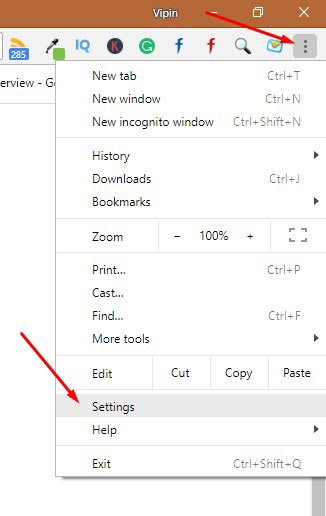
Click on Chrome’s main menu button, located in top right corner and looks like three vertical dots. Now click on “Settings”.

-
At the bottom, click “Advanced”.
You will see Chrome’s “Settings” in a new tab. Next, scroll down to the bottom and click on the “Advanced” button.

-
Under the section “Reset,” click “Reset”.
Now you will see Chrome’s advanced settings. Scroll down to the “Reset and clean up” section. Then click on the “Reset settings to their original defaults” button.

-
Confirm by clicking “Reset”.
Now you will see a confirmation dialog, detailing the components that will be restored to their default state should you continue on with the reset process. To confirm the reset action, click on the “Reset Settings” button.



Mozilla Firefox
-
Go to the “Help” menu.
Click on Firefox’s main menu button, located in the top right corner, represented by three horizontal lines. Then click on “Help“.

-
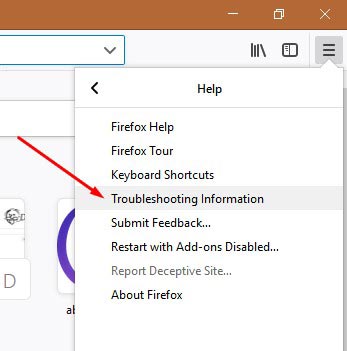
Click “Troubleshooting Information”.
Now click on “Troubleshooting Information“.
If you’re unable to access the “Help” menu, then you can type about:support in the address bar and press enter to directly open troubleshooting page.
-
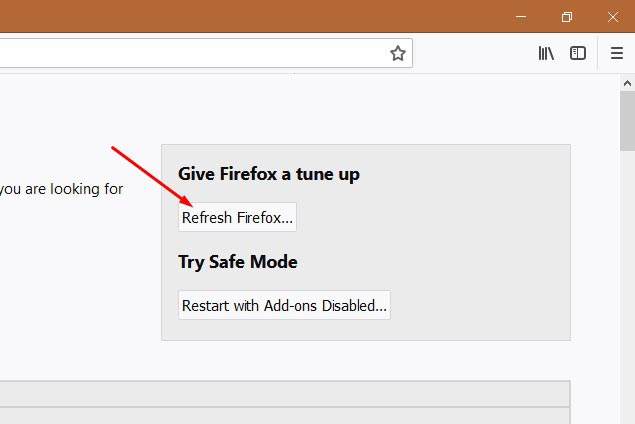
Click on “Refresh Firefox”
Now click on the “Refresh Firefox” button which is on the upper-right corner of the “Troubleshooting Information” page.

-
Confirm.
Now you will see the confirmation message telling you the action you are about to take. Click on the “Refresh Firefox” button to confirm the action.

-
Click on “Finish”.
Firefox gets closed and its settings will reset. Then it will display the list with information that was imported. Now click on the “Finish“.


Internet Explorer
-
Go to “Internet Options”.
Open Internet Explorer browser, click on the gear icon in the top right part of the browser, now select “Internet Options“.

-
Go to “Advanced” tab, then click “Reset”
In the “Internet Options”, click on the “Advanced” tab, then select the “Reset” button.

-
Click on “Reset”.
In the “Reset Internet Explorer settings” window, click on the “Delete personal settings” checkbox, then click on the “Reset” button.

-
Click on “Close”.
Once the Internet Explorer completes all the action, click on the “Close” button.
Now you need to restart the Internet Explorer browser.


Microsoft Edge
-
Go to “Apps and Features”.
Right-click on the Start button and select “Apps and Features“. It will open the list of all installed programs.

-
Find Microsoft Edge from the list, then click “Advanced Options”.
You will see the list of all programs in your PC. Scroll through the list and locate “Microsoft Edge”, select it, and then click on the “Advanced options”.

-
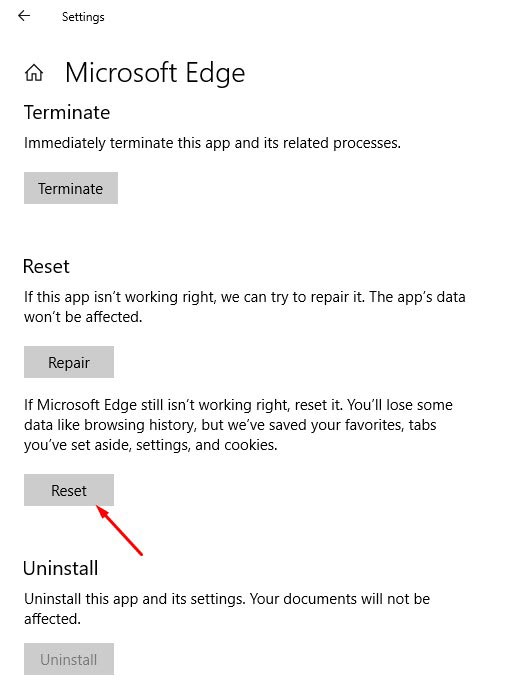
Click on “Reset”.
Now you will see the “Advanced Options”. Find the “Reset” section, as shown in the picture below. Then click on the “Reset” button.


Your computer should now be clean, and you will not see the Delta-search.com pop-up ads in your browser. If you are still facing problems while trying to remove Delta-search.com adware then please comment down your problem. We will try to help you as much as possible.

Thank you for this. I had removed the program but it was still inside Firefox. I easily removed it with your instructions.
Still didnt remove from google chrome. Mine doesn’t have the under the hood feature.
CoryM,
‘Under the hood’ is not present in the latest version of Google Chrome. That step, is only to prevent the delta search infection. It is not included in the removal procedure. You must remove the extension. You can follow this procedure from Goolge Support web site.
http:// support.google.com/chrome/bin/answer.py?hl=en&answer=113907
Tu información es muy buena si me sirvio porque yo creia que el motor de busqueda que me ofrecia el internet como Delta search era bueno, pero ya veo y leo que no lo es. Así mismo muchas gracias por la explicación para poderlo quitar de la compu. Otra pregunta que opinion me puedes dar de moxila firox.
The home pages are still redirected to delta-search
… even after uninstalling & configuring the browser settings