

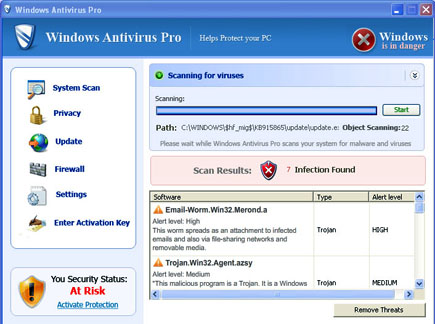
Windows Antivirus Pro is a malware and fake security tool that pretends to be a legitimate one by using a very popular Operating System brand. This program is not in any way connected to Microsoft Windows, it is just a trick to let users believed that Windows Antivirus Pro is an official and legitimate antivirus. Computer who got infected with these program may experience bombardment of warning messages and Internet blocking.
What Windows Antivirus Pro Does?
It will display pop-up alerts, warning messages and run virus scan.
It will modify Windows Registry and add the following entries:
- HKEY_LOCAL_MACHINE\SOFTWARE\Microsoft\Windows\CurrentVersion\Run = WindowsAntivirusPro.exe
- HKEY_USERS\Software\WindowsAntivirusPro
The threat will drop the following malicious files:
- WindowsAntivirusPro.exe
- WindowsAntivirusProUpdate.exe
- shlwapi.dll
- wininet.dll
- WindowsAntivirusPro.lnk
- WindowsAntivirusPro on the Web.lnk
- WindowsAntivirusPro.url
- Uninstall WindowsAntivirusPro.lnk
How to Remove Windows Antivirus Pro Manually
1. Restart your computer in SafeMode
– After Power-On the computer, just before Windows start, press F8
– From the selections, Select SafeMode
2. Remove Registry entries that the threat added. You MUST BACKUP YOUR REGISTRY FIRST.
– Click Start > Run
– Type in the field, regedit
– Navigate and look for the registry entries mentioned above and delete if necessary
3. Delete malicious files that the threat added:
– Base on the given location above, browse and delete the file
– If no location is given, click Start>Search> and search for the file.
– If cannot be deleted, press Ctrl+Alt+Del to access Task Manager, see if the file is running in the process. If it is, select the file and click End Process. Perform file delete again.
How to Easily Remove Windows Antivirus Pro
1. Print this procedure as we need to close all programs running later.
2. Download AntiMalware Application here and save it to your Desktop.
3. Close all open applications.
4. Double-Click on the downloaded mbam-setup.exe to start the installation. If unable to execute, infections on computer is preventing it from running, rename the file mbam-setup.exe to anything (like myfile.exe)
5. Run the installation on the default settings. No changes are necessary.
6. Just before completing the installation, make sure that the following are marked check.
– Update the program
– Launch the program
7. The tool will run and update itself after installation. Close it after the update.
8. Restart your computer in SafeMode
– After Power-On the computer, just before Windows start, press F8
– From the selections, Select SafeMode
9. Click on the icon and start to Perform Full Scan to begin scanning your computer for Windows Antivirus Pro related files.
10. After scanning, a message will appear stating that the scan is completed successfully. Click OK.
11. Click Show Results and detected threats will be displayed.
12. Make sure that all threats are marked check, then click Remove Selected to begin removal of the malicious files.
13. Exit AntiMalware Apps and restart your computer.
14. Windows Antivirus Pro and all its files are now removed from your computer. To guard your computer from this threat and avoid future infections, you may want real-time protection from a full version of anti-malware program..
