

System Removal is one program that is believed to penetrate a system without a warning because it uses a technique that will be able to hide its presence from installed anti-virus programs. System Removal was developed in the main purpose of stealing money from innocent victims by fraudulent online activity process. Just like an old version called System Tool, this new one will mimic the same graphical user interface. At the same time, it will also issue fake warnings and alerts similar to previous variants. Whats surprising about System Removal is it remains undetected by some security programs.
If installed on the PC, System Removal will alter system settings and Internet browser that will make it to redirect to unsolicited and malicious web sites. Registry entries are also added to execute the rogue application when Windows is started. An automatic virus scan with System Removal is run to thoroughly check the computer. To further convince users about threats currently present, it will provide fabricated scan results stating that dozens of viruses were detected. If this was observed, download and run a legitimate and effective anti-malware application as advise below and see that it will identify System Removal as the one who endangers the computer.
What are the Symptoms of System Removal Infection?
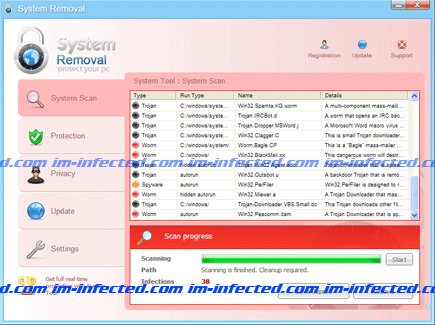
It will modify Windows Registry and add the following entry/entries:
KEY_CURRENT_USER\Software\MicrosoftWindows\CurrentVersion\RunOnce “[random]”
The threat will drop the following malicious files:
c:\\Documents and Settings\All Users\Application Data\[random]
c:\\Documents and Settings\All Users\Application Data\[random]\[random]
How to Remove System Removal Manually
1. Restart your computer in SafeMode
– After Power-On the computer, just before Windows start, press F8
– From the selections, Select SafeMode
2. Remove Registry entries that the threat added. You MUST BACKUP YOUR REGISTRY FIRST.
– Click Start > Run
– Type in the field, regedit
– Navigate and look for the registry entries mentioned above and delete if necessary
3. Delete malicious files that the threat added:
– Base on the given location above, browse and delete the file
– If no location is given, click Start>Search> and search for the files.
– If cannot be deleted, press Ctrl+Alt+Del to access Task Manager, see if the file is running in the process. If it is, select the file and click End Process. Perform file delete again.
4. Scan computer with Antivirus Program
– Update antivirus program
– Scan computer and delete all detected threats.
How to Easily Remove System Removal
1. Download and run Removal Tool to remove this computer threat.
