

Win7 Antispyware 2011 or sometimes installed as Vista Antispyware 2011 and XP Antispyware 2011 are rogue security programs that will be loaded on computer depending on the operating system of the victim. It has the ability to examine target’s computer system and configure itself if necessary. These applications were released few months back and were successfully detected and totally eliminated by anti-malware and anti-virus programs. Thus, the activity of this malware has gone down for quite some time, but not anymore.
Now, it has returned as a semi-undetectable threat that can bypass security programs that are installed on computers. Win7 Antispyware 2011 now uses a rootkit technique that able itself to be attached to legitimate system files to conceal itself and avoid detection. By injecting the code to system files, the malware will run once the system file is loaded by Windows. In most instances, Win7 Antispyware 2011 code are injected into drivers and dynamic link library files.
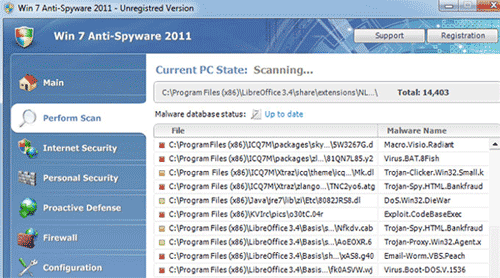
Its presence on the computer will bring real trouble including disabling of any installed anti-virus programs. Preventing users to run executable files or software and browser redirection can be added to its payload. While running on the background, system performance will be reduced and slows down hard drives. Attempting to fix any computer malfunction will just end up having to pay for the registered version of the unwanted program.
The only solution to this problem is complete removal of Win7 Antispyware 2011. Execute the removal procedure on this page to ensure efficient removal of this malware.
What are the Symptoms of Win7 Antispyware 2011 Infection?
It will modify Windows Registry and add the following entries:
HKEY_CURRENT_USER\Software\Classes\.exe\shell\open\command “(Default)” = “%UserProfile%\Local Settings\Application Data\av.exe” /START “%1” %*
HKEY_CURRENT_USER\Software\Classes\secfile\shell\open\command “(Default)” = “%UserProfile%\Local Settings\Application Data\av.exe” /START “%1” %*
HKEY_CURRENT_USER\Software\Classes\.exe\shell\open\command “(Default)” = “%UserProfile%\Local Settings\Application Data\ave.exe” /START “%1” %*
HKEY_CURRENT_USER\Software\Classes\secfile\shell\open\command “(Default)” = “%UserProfile%\Local Settings\Application Data\ave.exe” /START “%1” %*
HKEY_CLASSES_ROOT\.exe\shell\open\command “(Default)” = “%UserProfile%\Local Settings\Application Data\av.exe” /START “%1” %*
HKEY_CLASSES_ROOT\secfile\shell\open\command “(Default)” = “%UserProfile%\Local Settings\Application Data\av.exe” /START “%1” %*
HKEY_CLASSES_ROOT\.exe\shell\open\command “(Default)” = “%UserProfile%\Local Settings\Application Data\ave.exe” /START “%1” %*
HKEY_CLASSES_ROOT\secfile\shell\open\command “(Default)” = “%UserProfile%\Local Settings\Application Data\ave.exe” /START “%1” %*
HKEY_LOCAL_MACHINE\SOFTWARE\Clients\StartMenuInternet\FIREFOX.EXE\shell\open\command “(Default)” = “%UserProfile%\Local Settings\Application Data\av.exe” /START “C:\Program Files\Mozilla Firefox\firefox.exe”
HKEY_LOCAL_MACHINE\SOFTWARE\Clients\StartMenuInternet\FIREFOX.EXE\shell\safemode\command “(Default)” = “%UserProfile%\Local Settings\Application Data\av.exe” /START “C:\Program Files\Mozilla Firefox\firefox.exe” -safe-mode
HKEY_LOCAL_MACHINE\SOFTWARE\Clients\StartMenuInternet\IEXPLORE.EXE\shell\open\command “(Default)” = “%UserProfile%\Local Settings\Application Data\av.exe” /START “C:\Program Files\Internet Explorer\iexplore.exe”
HKEY_LOCAL_MACHINE\SOFTWARE\Clients\StartMenuInternet\FIREFOX.EXE\shell\open\command “(Default)” = “%UserProfile%\Local Settings\Application Data\ave.exe” /START “C:\Program Files\Mozilla Firefox\firefox.exe”
HKEY_LOCAL_MACHINE\SOFTWARE\Clients\StartMenuInternet\FIREFOX.EXE\shell\safemode\command “(Default)” = “%UserProfile%\Local Settings\Application Data\ave.exe” /START “C:\Program Files\Mozilla Firefox\firefox.exe” -safe-mode
HKEY_LOCAL_MACHINE\SOFTWARE\Clients\StartMenuInternet\IEXPLORE.EXE\shell\open\command “(Default)” = “%UserProfile%\Local Settings\Application Data\ave.exe” /START “C:\Program Files\Internet Explorer\iexplore.exe”
The threat will drop the following malicious files:
Windows XP:
c:\Documents and Settings\All Users\Application Data\[random]
%UserProfile%\Local Settings\Application Data\av.exe
%UserProfile%\Local Settings\Application Data\ave.exe
%UserProfile%\Local Settings\Application Data\[random]
%UserProfile%\Local Settings\Application Data\[random]
%UserProfile%\Local Settings\Temp\[random]
%UserProfile%\Templates\[random]
Windows Vista and Windows 7:
C:\ProgramData\QJyrk5wvCU1
C:\Users\All Users\QJyrk5wvCU1
%UserProfile%\AppData\Local\av.exe
%UserProfile%\AppData\Local\ave.exe
%UserProfile%\AppData\Local\[random]
%UserProfile%\AppData\Local\[random]
%UserProfile%\AppData\Local\Temp\[random]
%UserProfile%\AppData\Roaming\Microsoft\Windows\Templates\[random]
How to Remove Win7 Antispyware 2011, Vista Antispyware 2011 and XP Antispyware 2011 Manually
1. Restart your computer in SafeMode
– After Power-On the computer, just before Windows start, press F8
– From the selections, Select SafeMode
2. Remove Registry entries that the threat added. You MUST BACKUP YOUR REGISTRY FIRST.
– Click Start > Run
– Type in the field, regedit
– Navigate and look for the registry entries mentioned above and delete if necessary
3. Delete malicious files that the threat added:
– Base on the given location above, browse and delete the file
– If no location is given, click Start>Search> and search for the files.
– If cannot be deleted, press Ctrl+Alt+Del to access Task Manager, see if the file is running in the process. If it is, select the file and click End Process. Perform file delete again.
4. Scan computer with Antivirus Program
– Update antivirus program
– Scan computer and delete all detected threats.
How to Easily Remove Win7 Antispyware 2011, Vista Antispyware 2011 and XP Antispyware 2011
1. Download and run a removal tool from this link. Once downloaded, install the program and do a full scan on the infected computer.
