

“License expiration error” is a fake pop up alert message being issued by a fake antivirus program on victim’s computer. The sole purpose of this false message is to scare computer owners about a presence of virus including Trojan.FileHarakiri. Though, detected threats do not actually present on the system, it will be revealed to influence those who can read the message.
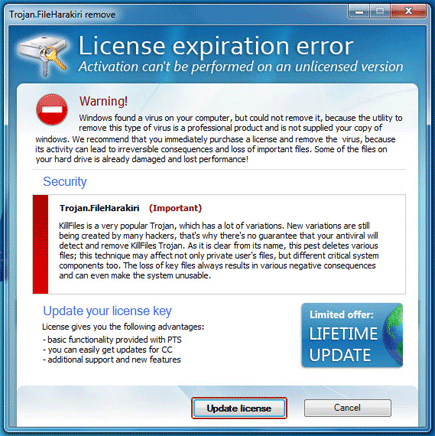
Upon receiving the warning, Trojan sees the perfect timing to introduce the program that it recommend to remove infection. As they projected, removal can be easy but not for free. License expiration error requires updating the license to a full version to perform virus removal. As what have stated on the false alert message:
License expiration error
Activation can’t be performed on an unlicensed version
Warning!
Windows found a virus on your computer, but could not remove it, because the utility to remove this type of virus is a professional product and in not supplied your copy of Windows. We recommend that you immediately purchase a license and remove the virus, because its activity can lead to irreversible consequences and loss of important files. Some of the files on your hard drive is already damaged and lost performance.
Be aware that this entire deterrent to in computer operation is part of online fraud. Malware authors intend to catch your attention through this fake alert. Thus, if you are seeing warning messages similar to the one above, run a virus scan on the computer right away. Scanning the PC with a separate anti-malware tool can also help get rid of some threats not found by previous scan.
What are the Symptoms of License expiration error Infection?
How to Easily Remove License expiration error
1. Print this procedure as we need to close all programs running later.
2. Download AntiMalware Application here and save it to your Desktop.
3. Close all open applications.
4. Double-Click on the downloaded mbam-setup.exe to start the installation. If unable to execute, infections on computer is preventing it from running, rename the file mbam-setup.exe to anything (like myfile.exe)
5. Run the installation on the default settings. No changes are necessary.
6. Just before completing the installation, make sure that the following are marked check.
– Update the program
– Launch the program
7. The tool will run and update itself after installation. Close it after the update.
8. Restart your computer in SafeMode
– After Power-On the computer, just before Windows start, press F8
– From the selections, Select SafeMode
9. Click on the icon and start to Perform Full Scan to begin scanning your computer for related files.
10. After scanning, a message will appear stating that the scan is completed successfully. Click OK.
11. Click Show Results and detected threats will be displayed.
12. Make sure that all threats are marked check, then click Remove Selected to begin removal of the malicious files.
13. Exit AntiMalware Apps and restart your computer.
14. Malicious files are now removed from your computer. To guard your computer from this threat and avoid future infections, you may want real-time protection from a full version of anti-malware program..
