

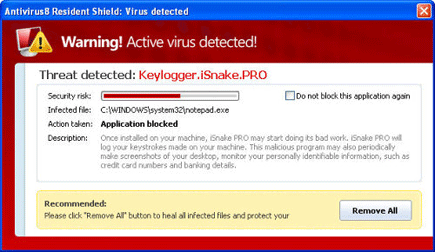
Antivirus8 Resident Shield will imply that computer is infected with Keylogger.iSnake.PRO and advise that it must be remove with the registered version of the program. This tactic has been used and abused by various kind of rogue security software as a promotional method to sell their products in a fraudulent manner. This fake warning will ascend from your Windows task bar and appears aggressively on the computer screen. The message states that:
Antivirus8 Resident Shield: Virus detected
Warning! Active virus detected!
Threat detected: Keylogger.iSnake.PRO
Infected file: C:\WINDOWS\System32\notepad.exe
Description: Once installed on your machine, iSnake PRO may start doing its bad work. iSnake PRO will log you keystrokes made on your machine. This malicious program may also periodically make screenshots of your desktop, monitor your personally identifiable information, such as credit card numbers and banking details.
Recommended: Please click “Remove All” button to heal all infected files and protect your PC
The next time you see a warning about Antivirus8 Resident Shield, better start scanning the computer with powerful antivirus program. Running a scan with anti-malware may also help find and remove other data that is hidden on the computer. Anti-malware scan also removes malicious entries on the Windows registry as well as infected files on systems folder.
After removing the threat, guarding the computer with security tool that can block malicious web sites is highly advice. This way, you can prevent browser from opening malicious and risky web pages.
What are the Symptoms of Antivirus8 Resident Shield Infection?
How to Easily Remove Antivirus8 Resident Shield
1. Print this procedure as we need to close all programs running later.
2. Download AntiMalware Application here and save it to your Desktop.
3. Close all open applications.
4. Double-Click on the downloaded mbam-setup.exe to start the installation. If unable to execute, infections on computer is preventing it from running, rename the file mbam-setup.exe to anything (like myfile.exe)
5. Run the installation on the default settings. No changes are necessary.
6. Just before completing the installation, make sure that the following are marked check.
– Update the program
– Launch the program
7. The tool will run and update itself after installation. Close it after the update.
8. Restart your computer in SafeMode
– After Power-On the computer, just before Windows start, press F8
– From the selections, Select SafeMode
9. Click on the icon and start to Perform Full Scan to begin scanning your computer for related malicious files.
10. After scanning, a message will appear stating that the scan is completed successfully. Click OK.
11. Click Show Results and detected threats will be displayed.
12. Make sure that all threats are marked check, then click Remove Selected to begin removal of the malicious files.
13. Exit AntiMalware Apps and restart your computer.
14. This malware and all of its files are now removed from your computer. To guard your computer from this threat and avoid future infections, you may want real-time protection from a full version of anti-malware program..
