

AV Checker is another threat that can be classified as a rogue program because of its intimidating way to convince victim that the system is severely infected with a number of viruses. Associated web sites will aggressively promote AV Checker as a tool to remove Trojan, virus and spyware.
Acquisition of this rogue software varies, but the most prominent method is via fake online virus scanner. Spam e-mail messages and bogus multi-media web site also hosts this kind of threat. After its installation on the computer, AV Checker will provide fake alerts and warning messages intended to persuade you into acquiring the registration key. A credit card details is needed to process this purchase from their online payment web site. Never conclude that having this program will reduce, if not eliminate annoyances occurring on the infected computer. In fact, the longer it stays in the system, the more threat it can convey when a connection from the remote computer was established.
Remove AV Checker as soon as presence is seen on the computer. Legitimate security programs are the only possible solution to remove AV Checker and stop excessive advertisements. Simple and easy to follow procedure is provided on this page. Make sure that you follow it to complete the removal process. Once the threat is removed, it’s about time to install an effective tool to guard your computer. Additionally, avoid unknown web sites to prevent this kind of threat from infecting your PC again.
What are the Symptoms of AV Checker Infection?
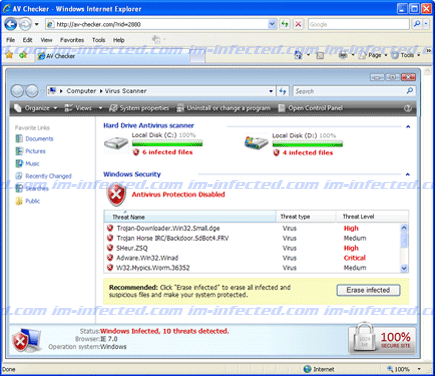
If AV Checker is present on the computer, you will be seeing the fake scanner that runs on every Windows boot-up. See image below for reference.
How to Easily Remove AV Checker
1. Print this procedure as we need to close all running programs later.
2. Download AntiMalware Application here and save it to your Desktop.
3. Close all open applications.
4. Double-Click on the downloaded mbam-setup.exe to start the installation. If unable to execute, infections on computer is preventing it from running, rename the file mbam-setup.exe to anything (like myfile.exe)
5. Run the installation on the default settings. No changes are necessary.
6. Just before completing the installation, make sure that the following are marked check.
– Update the program
– Launch the program
7. The tool will run and update itself after installation. Close it after the update.
8. Restart your computer in SafeMode
– After Power-On the computer, just before Windows start, press F8
– From the selections, Select SafeMode
9. Click on the icon and start to Perform Full Scan to begin scanning your computer for AV Checker related files.
10. After scanning, a message will appear stating that the scan is completed successfully. Click OK.
11. Click Show Results and detected threats will be displayed.
12. Make sure that all threats are marked check, then click Remove Selected to begin removal of the malicious files.
13. Exit AntiMalware Apps and restart your computer.
14. AV Checker and all its files are now removed from your computer. To guard your computer from this threat and avoid future infections, you may want real-time protection from a full version of anti-malware program..
