

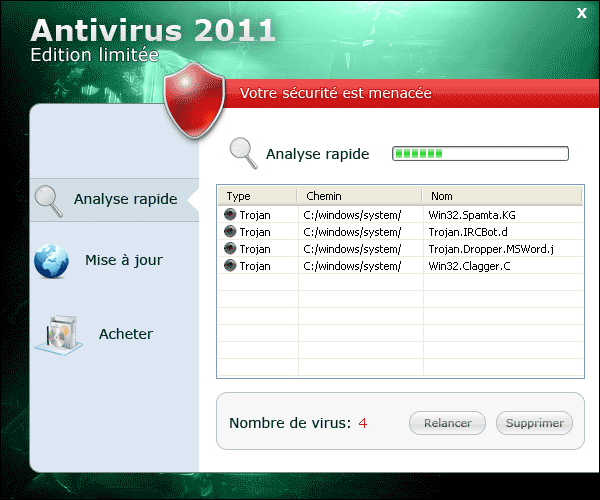
Anti-Virus 2011 is a malware that came from the same author who perpetuated other malicious software such as Antivirus Soft. These rogue programs may enter the computer with the help of a Trojan created to take advantage of un-patched security loopholes from an Internet browsers and Flash applets. Fake Java update is another source that you may look into. It can disguise as valid installation file of Java.
When inside the computer, Anti-Virus 2011 will include itself in the system registry to ensure that it will load when Windows starts. A virus scan will be displayed and fake reports will be generated to persuade its victims into purchasing the Anti-Virus 2011 activation code. Frequently, it will display fake warning alerts on the computer until such time that users will be able to convince to acquire the Anti-Virus 2011 registration key. Remember that alerts and detected viruses by rogue software are false. These alerts will surface even though computer is free from any threats. The tactics are normally used by all fake antivirus products to deceive victims.
Keep in mind that rogue programs such as this should not be purchased. A presence of any symptoms should alert users to initiate more precautions and removal of Trojan associated with Anti-Virus 2011. For complete removal instructions, proceed to the special section below. Use only valid and effective program to completely uninstall Anti-Virus 2011 and all data related to it. It is also advise to guard your computer with powerful anti-malware program prevent malware infection in the future.
What are the Symptoms of Anti-Virus 2011 Infection?
It will modify Windows Registry and add the following entries:
- HKEY_CURRENT_USER\Software\Microsoft\Windows\CurrentVersion\Run “av2011.exe”
- HKEY_LOCAL_MACHINE\SOFTWARE\Microsoft\Windows\CurrentVersion\Run “av2011.exe”
- HKEY_CURRENT_USER\Software\Microsoft\Windows\CurrentVersion\Policies\Attachments “SaveZoneInformation” = “1”
- HKEY_CURRENT_USER\Software\Microsoft\Windows\CurrentVersion\Internet Settings “ProxyServer” = “http=127.0.0.1:5555”
- HKEY_CURRENT_USER\Software\Microsoft\Windows\CurrentVersion\Policies\Associations “LowRiskFileTypes” = “.exe”
- HKEY_CURRENT_USER\Software\Microsoft\Internet Explorer\Download “RunInvalidSignatures” = “1”
- HKEY_CURRENT_USER\Software\Microsoft\Windows\CurrentVersion\Internet Settings “ProxyOverride” = “”
- HKEY_CURRENT_USER\Software\av2011
The threat will drop the following malicious files:
- %UserProfile%\Local Settings\Application Data\[random]\
- %UserProfile%\Local Settings\Application Data\[random]\[random]av2011.exe
- %UserProfile%\Local Settings\Application Data\[random]\[random]sftav.exe
- %UserProfile%\AppData\Local\[random]\
- %UserProfile%\AppData\Local\[random]\[random]av2011.exe
- %UserProfile%\AppData\Local\[random]\[random]sftav.exe
How to Remove Anti-Virus 2011 Manually
1. Restart your computer in SafeMode
– After Power-On the computer, just before Windows start, press F8
– From the selections, Select SafeMode
2. Remove Registry entries that the threat added. You MUST BACKUP YOUR REGISTRY FIRST.
– Click Start > Run
– Type in the field, regedit
– Navigate and look for the registry entries mentioned above and delete if necessary
3. Delete malicious files that the threat added:
– Base on the given location above, browse and delete the file
– If no location is given, click Start>Search> and search for the files.
– If cannot be deleted, press Ctrl+Alt+Del to access Task Manager, see if the file is running in the process. If it is, select the file and click End Process. Perform file delete again.
4. Scan computer with Antivirus Program
– Update antivirus program
– Scan computer and delete all detected threats.
How to Easily Remove Anti-Virus 2011
1. To uninstall Anti-Virus 2011 virus easily from computer without the hassle of editing registry and system files, please download a removal tool. Click this link to begin the download. Once completed, install it and run a scan on the computer.
