

Digital Protection is a counterfeit computer virus remover that will be installed by a Trojan on the computer without users permission. Sometimes, it can be dropped and execute on the computer who visits an infected website that will run a script to do this. Digital Protection trial version on computer will cause several annoyances including continuous pop-up alerts. Each time Windows is started, Digital Protection virus scanner will also run and exhibits false detection of virus threats on the computer. To some, these alarms will be taken seriously and proceed with the instructions on removing the threat – that is to purchase the Digital Protection registration key. But for intelligent users, deceitful activities being carried by this unwanted program can be sense as another virus attack and may take necessary measures to remove Digital Protection. In fact, it must be get rid from computer before it will add more harm such as browser redirection and disabling of installed antivirus application.
What are the Symptoms of Digital Protection Infection?
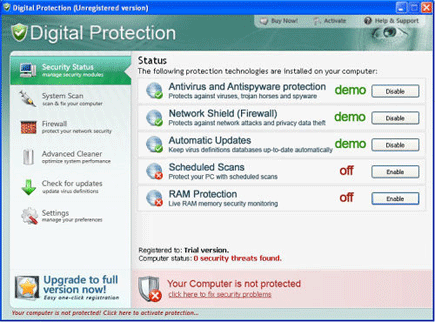
A demo version of this fake program will offer multiple security tool including antivirus and antispyware protection, network shield, schedule scans and RAM protection. A virus scan will exhibit false detection that will prompt you to purchase the Digital Protection activation key to have full version.
It will modify Windows Registry and add the following entries:
- HKEY_LOCAL_MACHINE\SOFTWARE\Digital Protection
- HKEY_LOCAL_MACHINE\SOFTWARE\Microsoft\Windows\Current Version\Uninstall\Digital Protection
- HKEY_CURRENT_USER\Software\Microsoft\Windows\Current Version\Run “digprot.exe”
- HKEY_CURRENT_USER\Software\Microsoft\Windows\Current Version\Run “avp.exe”
- HKEY_CURRENT_USER\Software\Microsoft\Windows\Current Version\Policies\System “DisableTaskMgr” = “1?
The threat will drop the following malicious files:
- %Program Files%\Digital Protection\
- %Program Files%\Digital Protection\about.ico
- %Program Files%\Digital Protection\activate.ico
- %Program Files%\Digital Protection\buy.ico
- %Program Files%\Digital Protection\digprot.exe
- %Program Files%\Digital Protection\help.ico
- %Program Files%\Digital Protection\scan.ico
- %Program Files%\Digital Protection\settings.ico
- %Program Files%\Digital Protection\splash.mp3
- %Program Files%\Digital Protection\uninstall.exe
- %Program Files%\Digital Protection\update.ico
- %Program Files%\Digital Protection\virus.mp3
- %WINDOWS%\System32\zq5e7t.dll
- %WINDOWS%\System32\vurrozj.dll
- %WINDOWS%\Temp\avp.exe
- %WINDOWS%\Temp\[random name].exe
- %Documents and Settings%\[UserName]\Desktop\Digital Protection Support.lnk
- %Documents and Settings%\[UserName]\Desktop\Digital Protection.lnk
- %Documents and Settings%\[UserName]\Start Menu\Programs\Digital Protection
- %Documents and Settings%\[UserName]\Start Menu\Programs\Digital Protection\About.lnk
- %Documents and Settings%\[UserName]\Start Menu\Programs\Digital Protection\Activate.lnk
- %Documents and Settings%\[UserName]\Start Menu\Programs\Digital Protection\Buy.lnk
- %Documents and Settings%\[UserName]\Start Menu\Programs\Digital Protection\Digital Protection Support.lnk
- %Documents and Settings%\[UserName]\Start Menu\Programs\Digital Protection\Digital Protection.lnk
%Documents and Settings%\[UserName]\Start Menu\Programs\Digital Protection\Scan.lnk - %Documents and Settings%\[UserName]\Start Menu\Programs\Digital Protection\Settings.lnk
- %Documents and Settings%\[UserName]\Start Menu\Programs\Digital Protection\Update.lnk
- %Documents and Settings%\[UserName]\Application Data\Microsoft\Internet Explorer\Quick Launch\Digital Protection.lnk
How to Remove Digital Protection Manually
1. Restart your computer in SafeMode
– After Power-On the computer, just before Windows start, press F8
– From the selections, Select SafeMode
2. Remove Registry entries that the threat added. You MUST BACKUP YOUR REGISTRY FIRST.
– Click Start > Run
– Type in the field, regedit
– Navigate and look for the registry entries mentioned above and delete if necessary
3. Delete malicious files that the threat added:
– Base on the given location above, browse and delete the file
– If no location is given, click Start>Search> and search for the files.
– If cannot be deleted, press Ctrl+Alt+Del to access Task Manager, see if the file is running in the process. If it is, select the file and click End Process. Perform file delete again.
4. Scan computer with Antivirus Program
– Update antivirus program
– Scan computer and delete all detected threats.
How to Easily Remove Digital Protection
1. Download and run MalwareBytes AntiMalware to remove this computer threat.

I’ve got MalwareBytes AntiMalware, but every time I run it the virus forces my computer to shut down before the scan can finish. I’ll try the manual removal.