

ClipConverter sends malicious links on your computer and ruins your browsing experience. It could display several forms of advertisements on your PC like pop-ups, banners, and redirects. ClipConverter.cc pretends to be a service that lets you convert and download online videos. You can paste the URL of the video, and then you can download the converted video. You can even upload and convert your video. At the front, the Clipconverter.cc seems unharmful, but it uses shady advertisement tactics to boost its revenue. In this article, you will know how to remove the ClipConverter pop-up virus.
How ClipConverter Pop-up Virus Works?
When you use the ClipConverter.cc services, it will display pop-up ads. It works like Ytmp3.cc pop-up virus. It also asks you to click on the allow button to show notifications. Once you click on the allow button, the website gets your permission to send push notifications on your desktop. You will receive these notifications even when your browsers are not running. The notifications appear as pop-ups and keep displaying no matter how many times you close them. While closing if you click on the pop-ups mistakenly, they take you to malicious pages of their clients.

ClipConverter uses this tactic for advertising the pages of its clients. Probably they need some support as their service is free of cost, but it is not the best way to do that. ClipConverter doesn’t verify the type of content on the pages that it promotes. Most of them are filled with lots of sponsored messages and advertisements for fraud products. Such pages could infect your computer with severe threats. You might get infected with spyware, ransomware, trojans, keyloggers, spyware, rootkits, etc.
How ClipConverter enters in your System?
If you can recall opening the ClipConverter.cc by yourself and click on the allow button to display the notifications, then you know how it enters. But if you don’t remember doing that, then it means that it is the adware that forces this website on your browser. Adware or some rogue websites could redirect you to such pages. Adware enters in your computer using with the help of third-party software. Their makers bundle the adware with free or pirated software.
When you download such a software that is bundled with adware, you also download the adware. If you choose the custom/advanced installation method, you will see the bundled software in the terms & condition page. It is preselected to install, and you can deselect it. However, most users consider it as an essential feature and don’t bother to deselect. Thus, they infect their computer with the adware.
What are the Dangers of Clipconverter.cc Pop-up virus?
Clipconverter.cc website isn’t that much intrusive but the ads it displays in your PC could cause severe computer infections. Below are the dangers of the pop-up virus.

- It tracks your search history, browsing history, IP address, location, and hardware & software information.
- Display different types of ads in your system like banners, pop-ups, redirects, hyperlinks, etc
- Changes the settings of your browser like homepage, new tab, and default search engine
- Could lead your PC infecting severe threats like ransomware, spyware, trojans, and rootkits.
How to Remove ClipConverter Pop-up Virus?
First of all, we need to block Clipconverter.cc notifications from the browser. Then we will uninstall the suspicious programs that could lead the adware in your system. It is also essential to remove fake extensions from the browsers. In the last to ensure that your PC doesn’t have any infection, we will scan it with antimalware.
Step 1 – Block Notifications from the Browsers
Google Chrome
Click on Menu button and then click on Settings

Scroll down and click on the Advanced button

Now click on Content settings under Privacy and security section.

Content settings will open now click on Notifications.

Now slide the toggle button to left so that it comes to Blocked instead of Ask before sending (recommended)

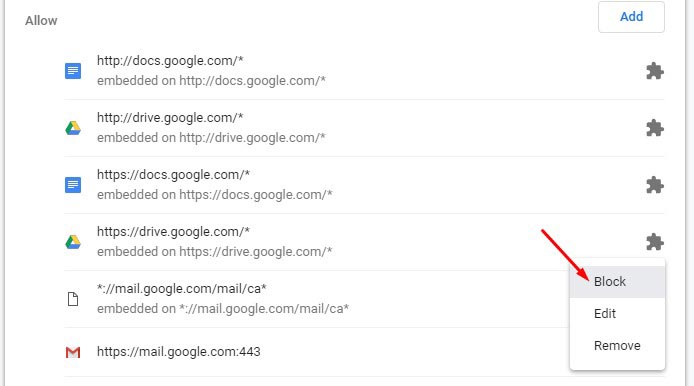
The websites you have already permitted to display notification will still show it. To stop it, scroll down to Allow section and click on the menu button against sites you want to stop the notification and click on Block.
Mozilla Firefox
Click on Menu button and then click on Options

Now go to the Privacy & Security section and scroll down to the Permissions section and click on Settings against Notification.

Now tick the box of Block new request asking to allow notifications. It will block the new requests.

To stop the websites, you already given permissions to display notifications click status of the site and choose Block. Now click on Save Changes to save the settings.

Microsoft Edge
Microsoft Edge also displays notifications of websites, but there is no way to stop the asking for display notification. Edge doesn’t provide the settings for it. You can click on No when a website wants to show notifications. Edge will remember it and will not ask again for that website.
Alternatively, you can stop the notification of Microsoft Edge from the windows settings. It will stop showing any notifications from Edge to the action center.
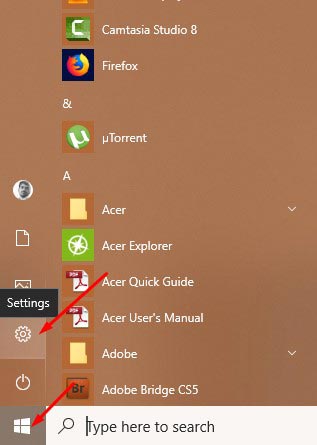
Click on the Start button and then click on the Gear icon of Settings.
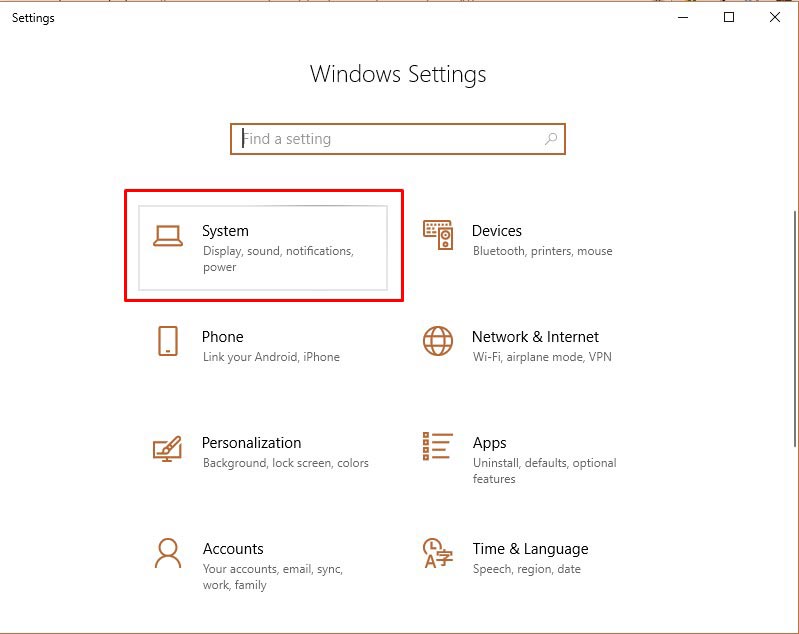
Now click on System.
Now click on Notifications & actions from the left side panel and scroll down to find Microsoft Edge.

You can use the toggle button beside Microsoft Edge to completely stop the notification, or you can click on Microsoft Edge to customize the priority and aggressiveness of notifications.

Step 2 – Reset the Browsers
If you followed all the steps above, but you still see the ClipConverter pop-ups, then you need to reset your browsers. It will remove the incorrect settings and extensions from your computer. Follow the below reset guides to proceed.
- Google Chrome Reset Guide
- Mozilla Firefox Reset Guide
- Microsoft Edge Reset Guide
- Internet Explorer Reset Guide
Step 3 – Scan with MalwareFox Antimalware
Download MalwareFox to proceed with the steps.
Open the MalwareFox installer and follow the instructions to install MalwareFox on your computer.
Once the MalwareFox installation completes, let it update the program and the signature database.

Now click on the Scan button.
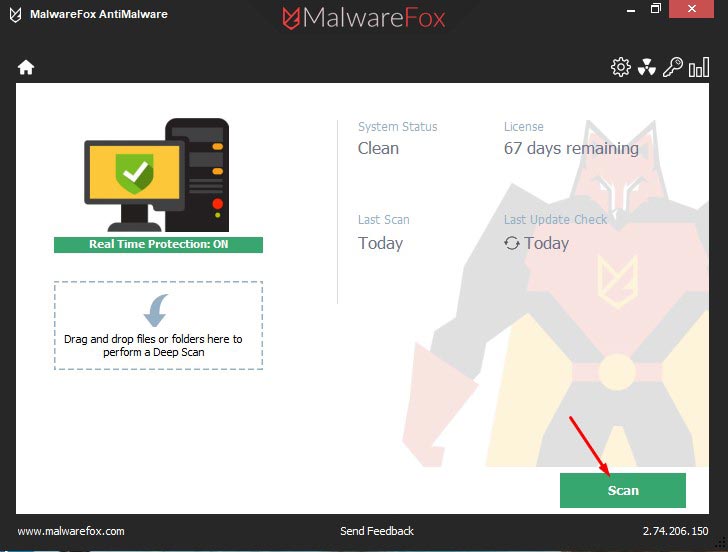
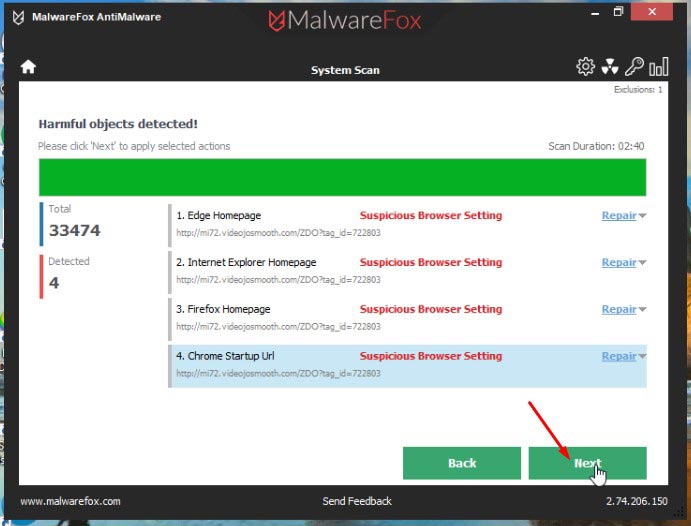
Once the scan completes, click on Next to remove the threats from your PC.
Removal Instructions in Video
You have successfully removed the ClipConverter.cc Pop-up Virus from your PC. Don’t visit suspicious websites and never install software from untrusted sources. Keep the MalwareFox’s real-time protection feature enabled so that it can protect you from such threats in the future.