

AV AntiSpyware is evidently a rogue security program that was almost a duplicate version of its previous released MS Antispyware 2009. This program is being endorsed by means of Trojan that may redirect web visitors to their own website. Once visited, it will prompt numerous alert messages that may lead to acquisition of AV AntiSpyware. If this program was installed on the system, it will bombard users with a pop-up forcing to get license for the unregistered program. While the potentially unwanted application exists on the PC, annoyances such as excessive pop-up alerts and browser redirection will be experienced. Immediately remove AV AntiSpyware from the system by doing a full virus scan. Use only real and trusted anti-malware application to get rid of AV AntiSpyware virus.
What AV AntiSpyware Does?
AV AntiSpyware will run its own virus scanner without users execution.
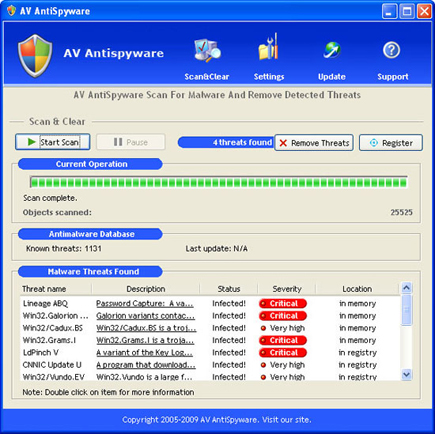
It will modify Windows Registry and add the following entries:
- HKEY_LOCAL_MACHINE\SOFTWARE\Microsoft\Windows\Current Version\Run = ava.exe
The threat will drop the following malicious files:
- ava.exe AV AntiSpyware.lnk
- c:\Documents and Settings\All Users\Application Data\LastSun Ltd
- c:\Documents and Settings\All Users\Application Data\LastSun Ltd\AV AntiSpyware\
- c:\Documents and Settings\All Users\Application Data\LastSun Ltd\AV AntiSpyware\BASE\
- c:\Documents and Settings\All Users\Application Data\LastSun Ltd\AV AntiSpyware\DELETED\
- c:\Documents and Settings\All Users\Application Data\LastSun Ltd\AV AntiSpyware\LOG\
- c:\Documents and Settings\All Users\Application Data\LastSun Ltd\AV AntiSpyware\SAVED\
- %UserProfile%\Start Menu\Programs\AV AntiSpyware
How to Remove AV AntiSpyware Manually
1. Restart your computer in SafeMode
– After Power-On the computer, just before Windows start, press F8
– From the selections, Select SafeMode
2. Remove Registry entry that the threat added. You MUST BACKUP YOUR REGISTRY FIRST.
– Click Start > Run
– Type in the field, regedit
– Navigate and look for the registry entry mentioned above and delete if necessary
3. Delete malicious files that the threat added:
– Base on the given location above, browse and delete the file
– If no location is given, click Start>Search> and search for the file.
– If cannot be deleted, press Ctrl+Alt+Del to access Task Manager, see if the file is running in the process. If it is, select the file and click End Process. Perform file delete again.
How to Easily Remove malware
1. All running application may need to be close prior to running these procedure. You may want to Print this instructions as your reference later.
2. Download SuperAntiSpyware and save it to your Desktop.
3. Close all running programs.
4. Double-Click on the downloaded SuperAntiSpyware application to start the installation.
Note: Some malware on the system may prevent execution of SuperAntiSpyware. In this case you have to rename the file to something as long as it still has .exe extention (ex: myfile.exe)
5. Install SAS using the default settings. Just click Accept or Next after each window.
6. It will prompt you for an Update, please click Yes
7. Restart your computer in SafeMode
– After Power-On the computer, just before Windows start, press F8
– From the selections, Select SafeMode
8. Double-click on the SAS icon to begin scanning your computer.
9. Click on the Preferences button.
10. Click Scanning Control tab
11. Under Scanner Options make sure the following are marked checked:
– Close browsers before scanning
– Scan for tracking cookies
– Terminate memory threats before quarantining
– Please leave the others unchecked.
– Click the Close button to leave the control center screen.
12. Close the Preferences and proceed to main window
13. Click Scan your Computer.
14. On the left pane, select which drive to scan, we suggest to select all drives including USB devices, but NOT CD/DVD drives
15. On the right pane, please select Perform Complete Scan
16. Click Next to start the scan
17. A Summary window will appear after the scan. Click OK
18. Make sure that you have marked checked all the detected AV AntiSpyware files, click Next
19. It will quarantine all detected threats and prompts for reboot, click Yes
20. To guard your computer from threats such as AV AntiSpyware, we suggest you to install a full version of SuperAntiSpyware.
